You already know how this week went.
A spreadsheet for the schedule. A different one for vans.

The schedule, the board, the fleet, the coaching and the driver's own app - instead of a spreadsheet, a group text and eleven browser tabs.
A spreadsheet for the schedule. A different one for vans.
A folder of screenshots for coaching, a group text for call-offs, and four browser tabs open just to answer whether a driver actually took their lunch.
Meanwhile the numbers that decide your week - safety, quality, compliance, whether you hit Fantastic Plus - live somewhere none of that can reach.
We ran a DSP like that for years. Fleet Cadence is what we built to stop.
It installs under your company's name, and writes it on every page.
07:45
07:45 Scheduler · Schedule Alerts
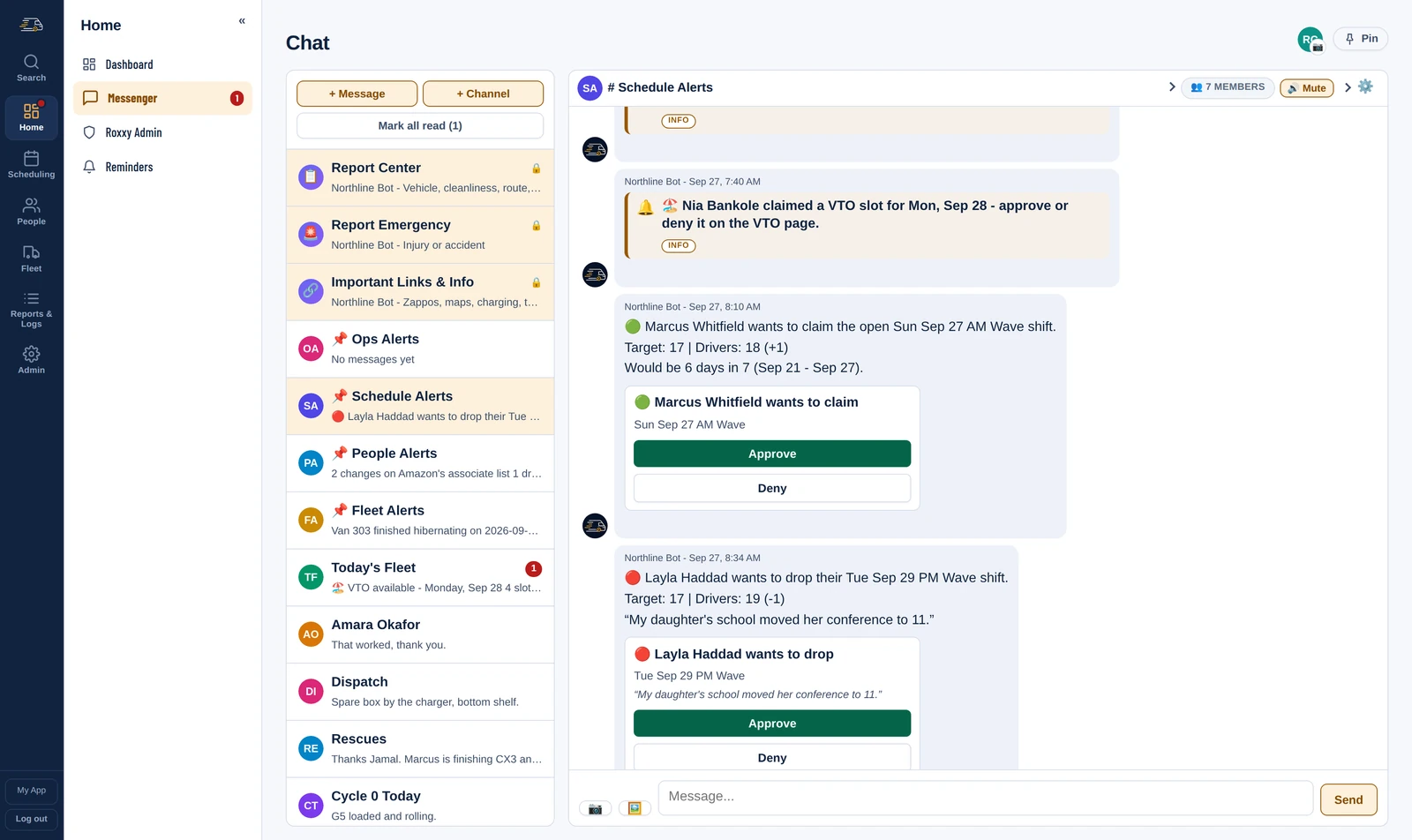
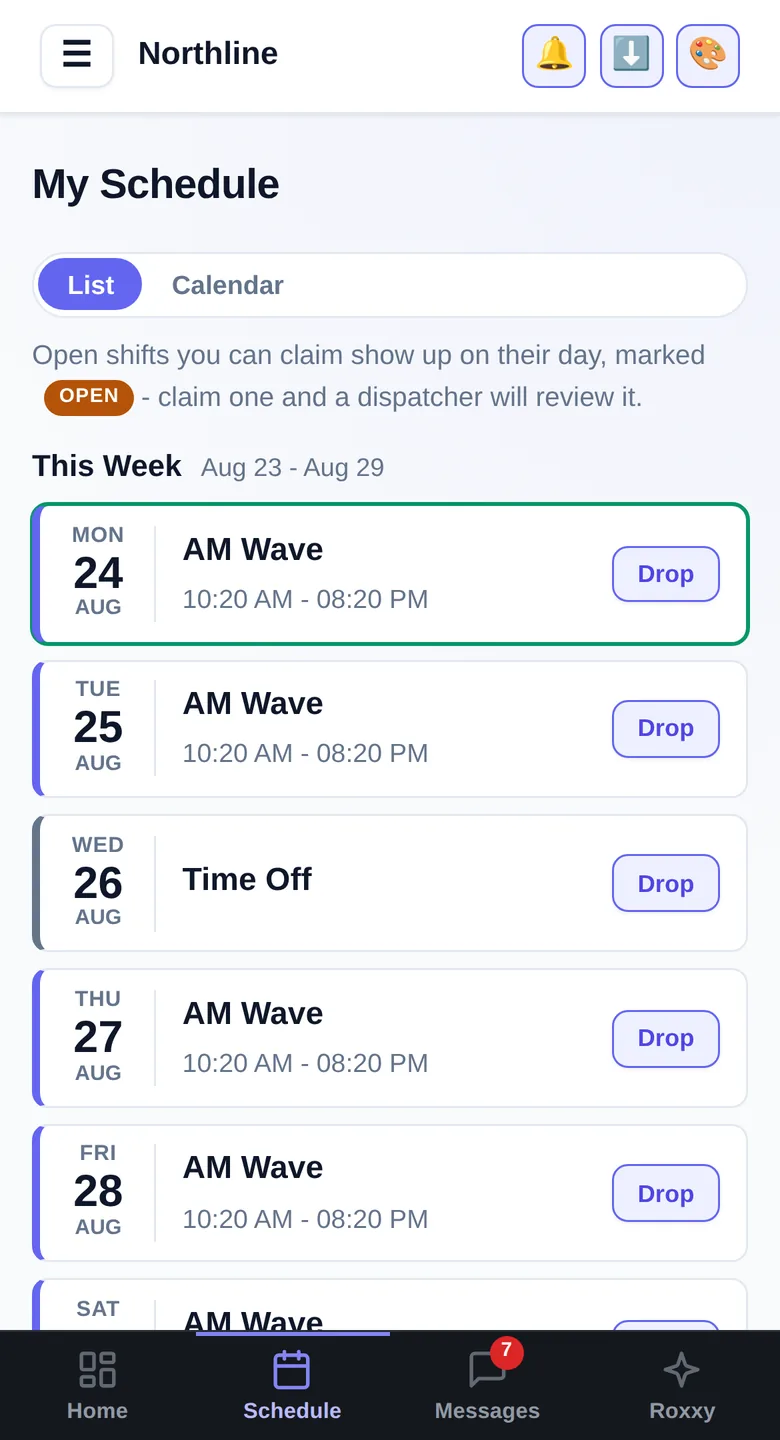
Mark the driver off and the shift becomes an open shift the whole fleet can see. Whoever can take it claims it from their phone; dispatch approves instead of ringing round.
The request lands in Schedule Alerts as a card with the numbers on it - who is asking, the day's target and headcount, and whether it would put them on six days in seven - with Approve and Deny right there. A driver asking to drop a shift arrives the same way, reason and all.
07:45 VTO
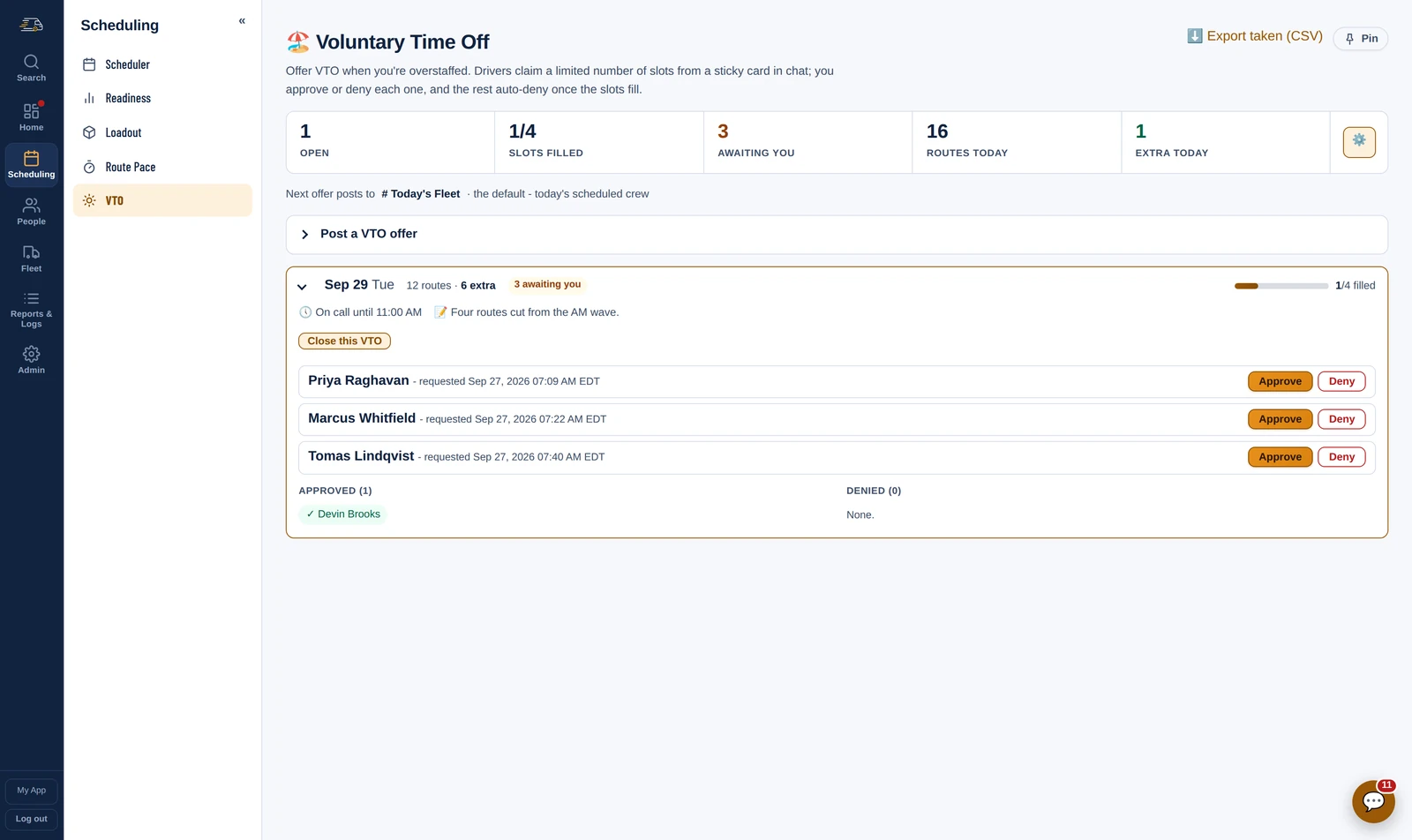
Amazon reduces the plan and you are suddenly three drivers long. Post the slots and the offer goes out as a card in chat - drivers claim from their phone, you approve or deny each one, and the extras auto-deny the moment it fills.
On call until a time you set, so somebody who took it is still reachable if a route comes back. It lands on the schedule and the day's count on its own. Skills can be excluded, so the one trainer you cannot lose is never offered it.
The board fills in as drivers claim, with no refresh, so two dispatchers are never approving out of a list that has already moved.
The rota Schedules
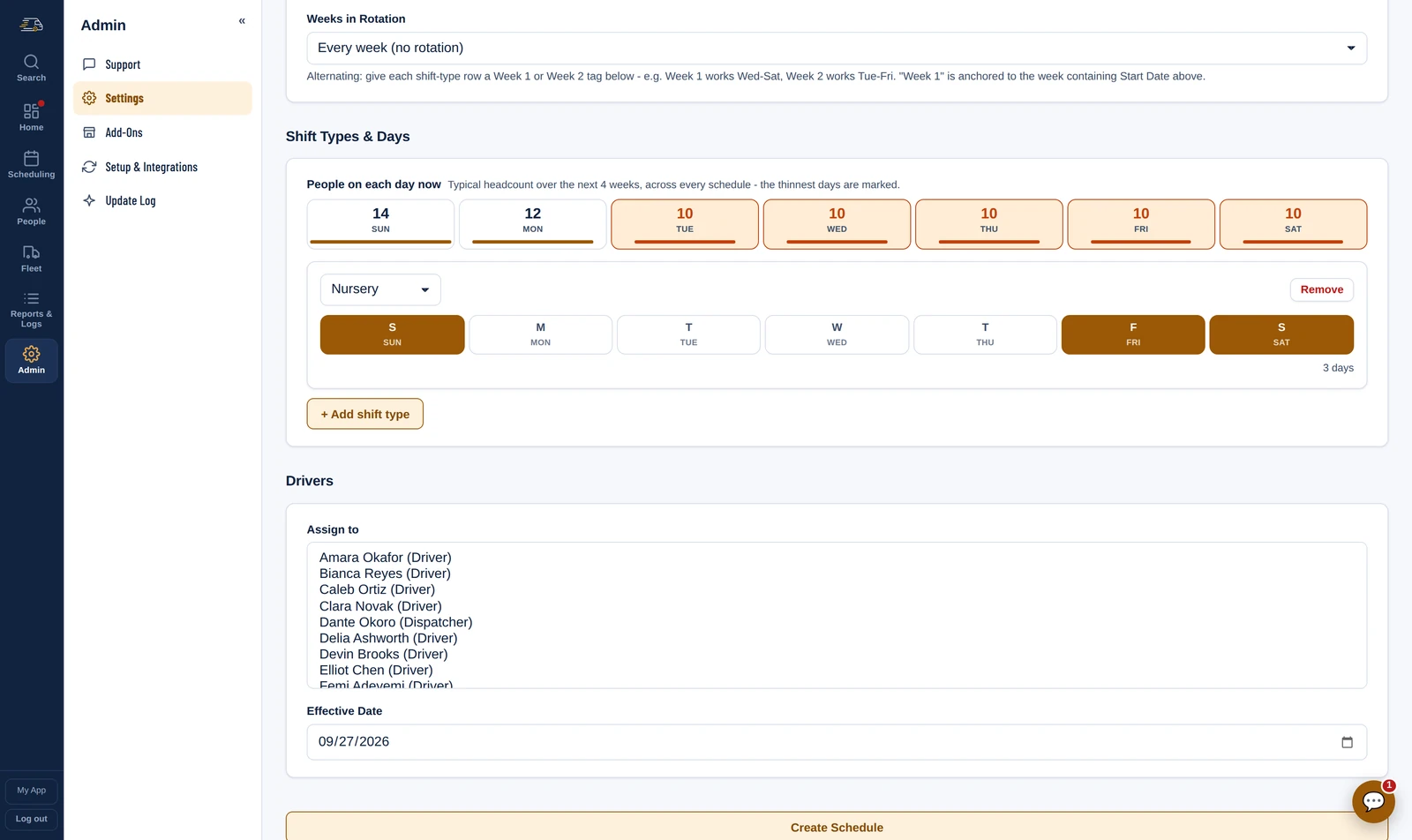
A schedule is a pattern: which shift type, which days, which drivers, from when. Set it once and it lays the weeks out on its own - every week, or alternating, so Week 1 and Week 2 can work different days.
While you build it, the page shows how many people each day already has across every schedule, with the thinnest days marked, so a new pattern goes where the gaps are rather than where it was easiest to click.
The board Scheduler
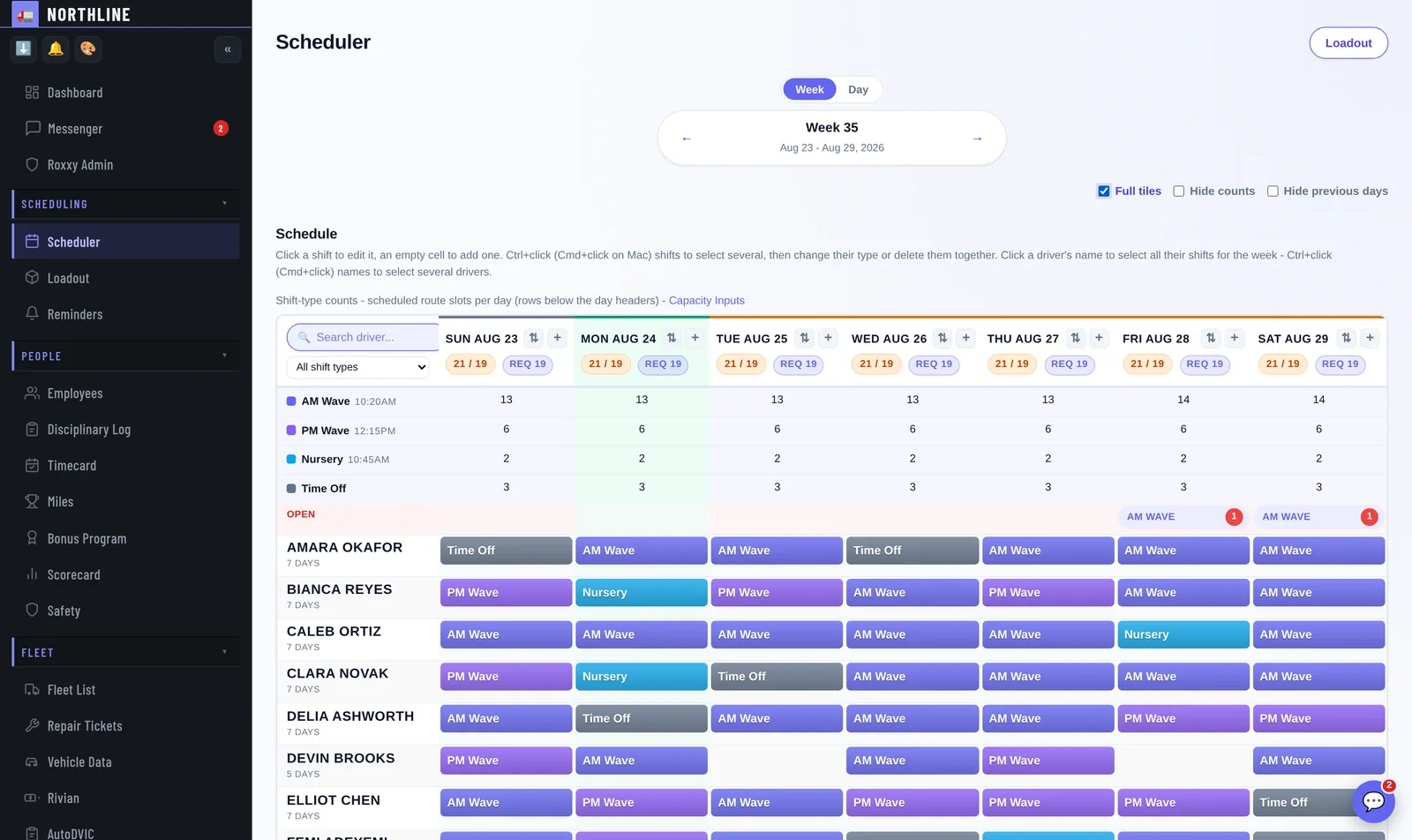
Every day is headed with who is scheduled against who is needed, the count per shift type and the open shifts still waiting, so a thin day shows before anybody opens a spreadsheet. Click a shift to change it, or an empty day to add one.
Requests to pick up or drop a shift wait behind one button at the top instead of stacking up over the week, and the board narrows to one shift type or one driver when you need it to.
Weeks out Readiness
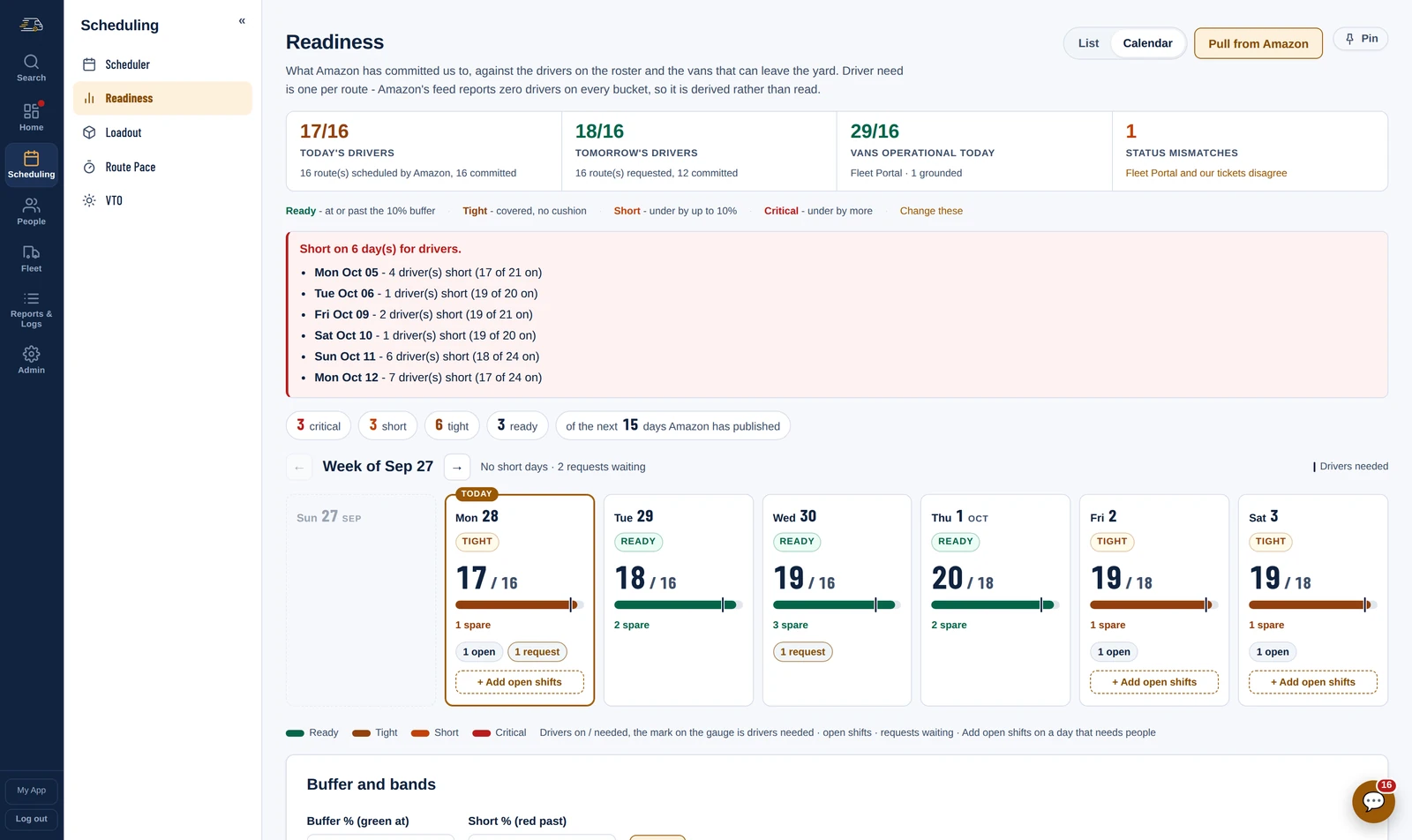
Amazon commits the routes weeks ahead. Readiness puts that against the drivers on the schedule and the vans that can leave the yard, a day at a time, as far out as Amazon has published - so the short Saturday shows up while there is still time to do something about it.
Each day reads Ready, Tight, Short or Critical against a buffer you set, the short days are listed in date order, and a day that needs people has Add open shifts right on its card. Drivers can pick them up, and are told.
08:30
08:30 Loadout board
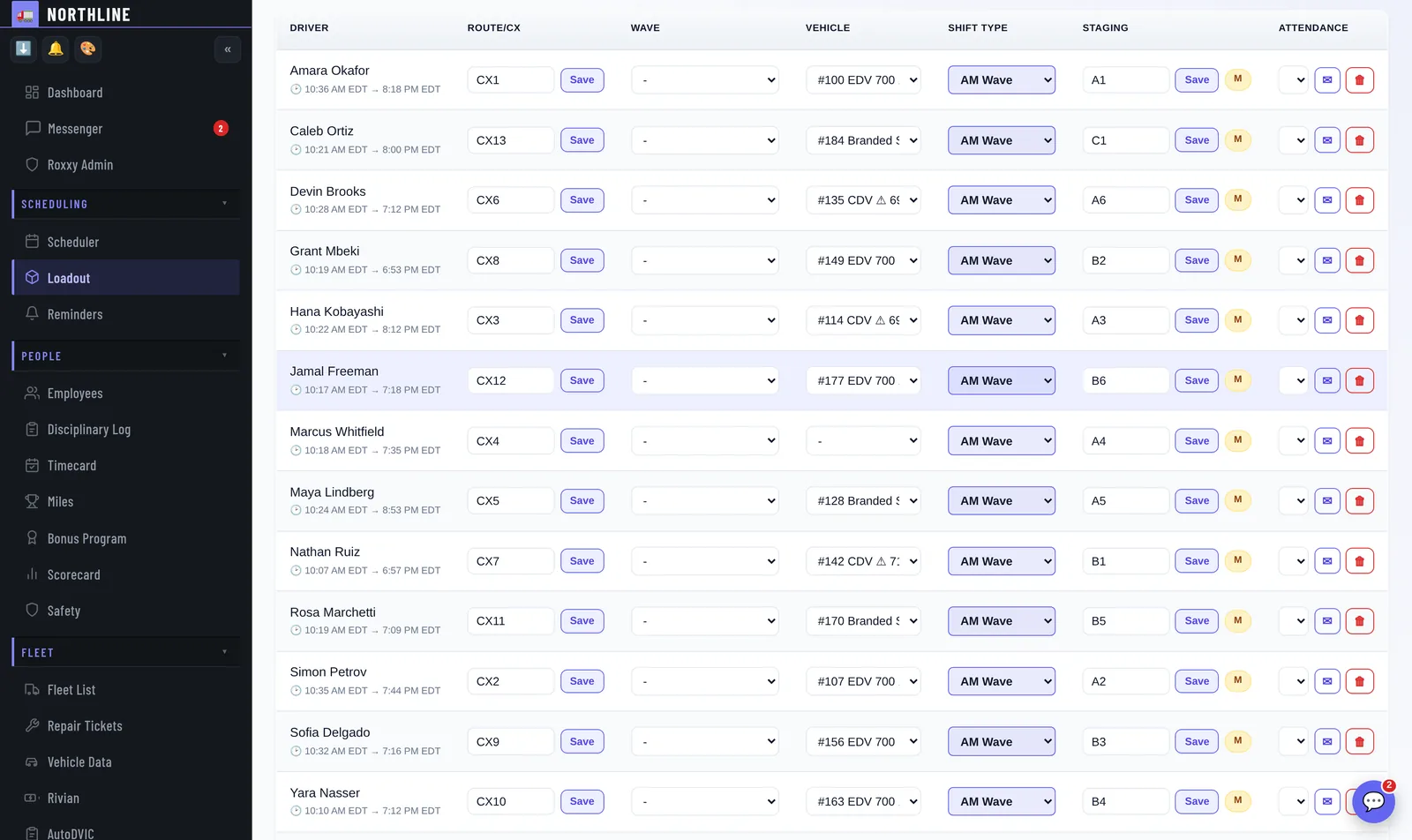
Import Amazon's route plan and the CX numbers, waves and staging spots are on the board. Assign a van and it is on that driver's phone - no printed sheet, no group text, no crowd around a whiteboard.
Five numbers across the top say how far along the day is - routes in, vans assigned, shifts assigned, staged, and anybody on the board who is not on the schedule - with the imports as four tiles under them and the day's flags under those: somebody scheduled but not on Amazon's roster, a CX number nobody has yet, a van of the wrong service type.
Auto-assign works off skill type and vehicle preference, so a step van only goes to somebody qualified for one. Route codes land off the itinerary, and the board knows which van is grounded and will not hand it to anybody.
08:45
08:45 · 09:20 The driver app
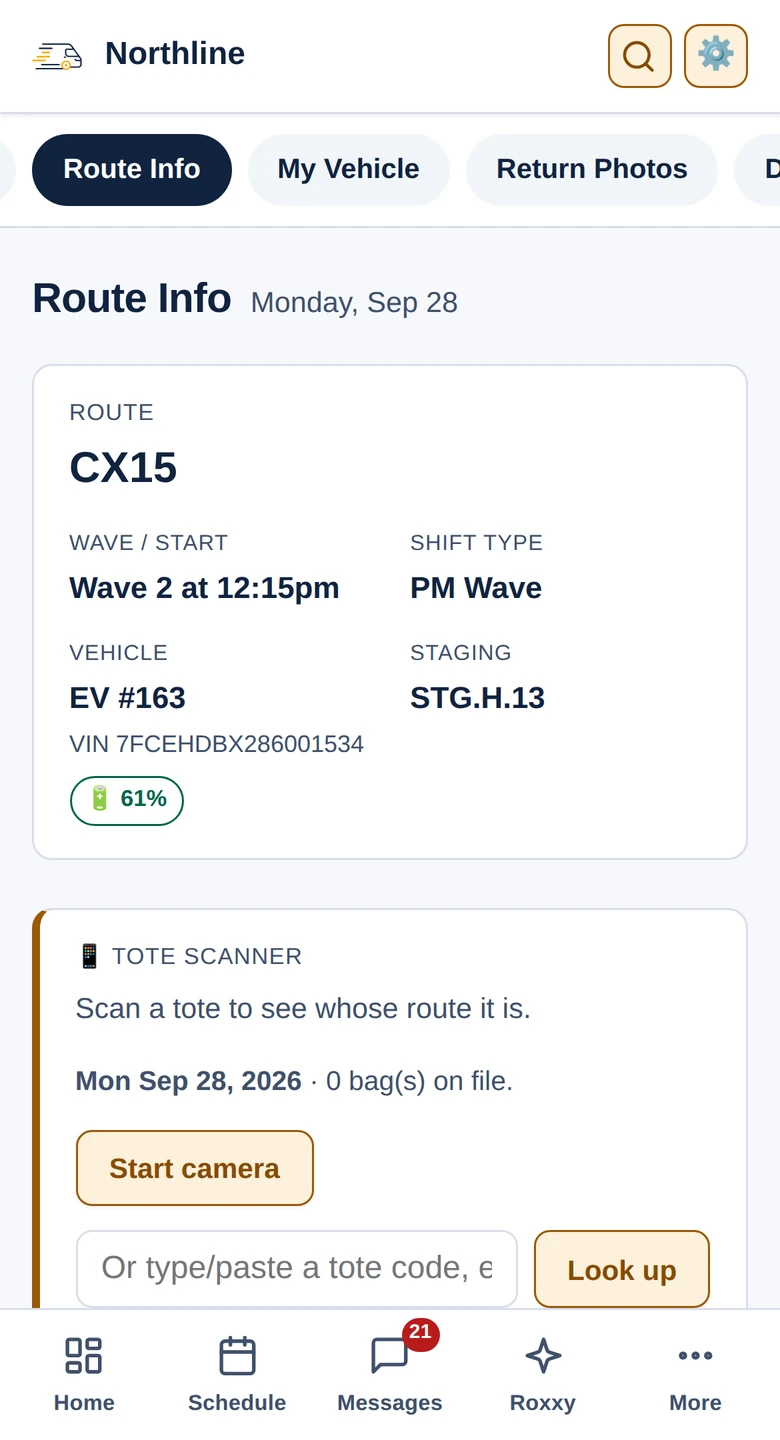
At 08:45 every driver gets a message: their van, wave time, route number and staging spot, and a photo of their pick sheets - with a heads-up if they have hub sheets. By the time Wave 1 lines up at 09:20, nobody is asking.
Their schedule, their hours straight from ADP, their own scorecard, the forms they need - so dispatch stops answering the same question forty times.
It installs under your name and carries it on every page. To a driver it is the company's app, which is why they open it.
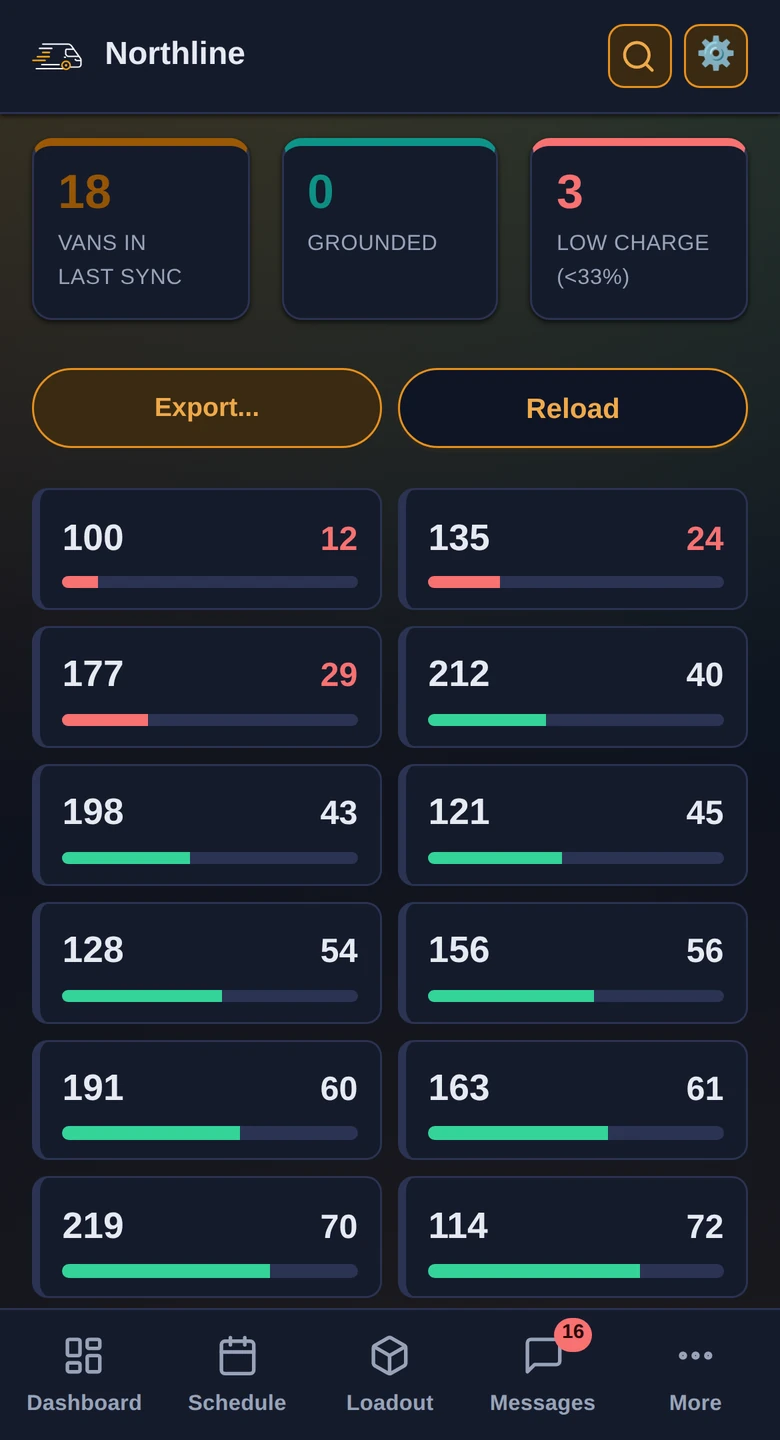
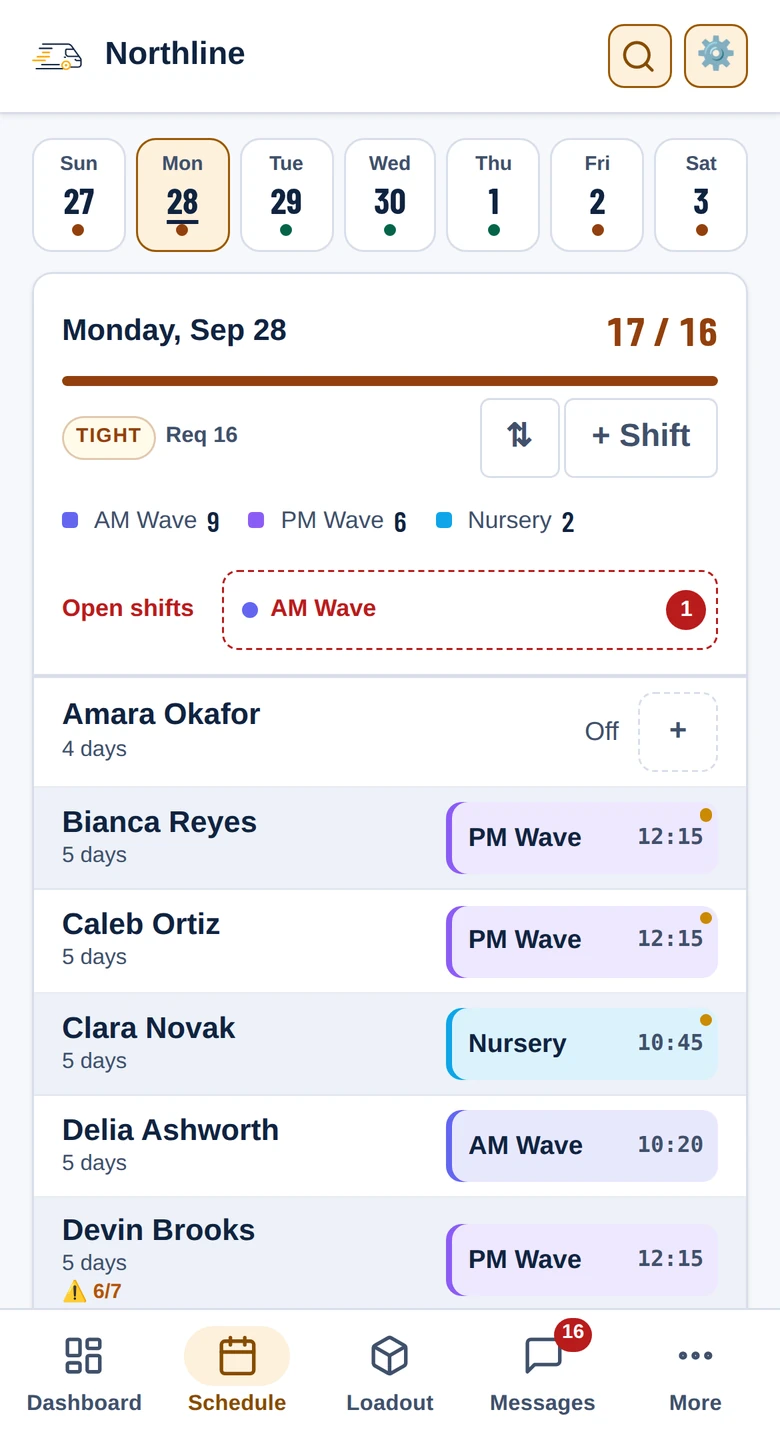
All day · from anywhere In the dispatcher's pocket
Not just the driver app. Rivian charge from the yard, the Scheduler one day at a time, the Loadout board, Readiness, the Disciplinary Log and the Damage Log all work on a phone.
14:20
14:20 Repair Tickets
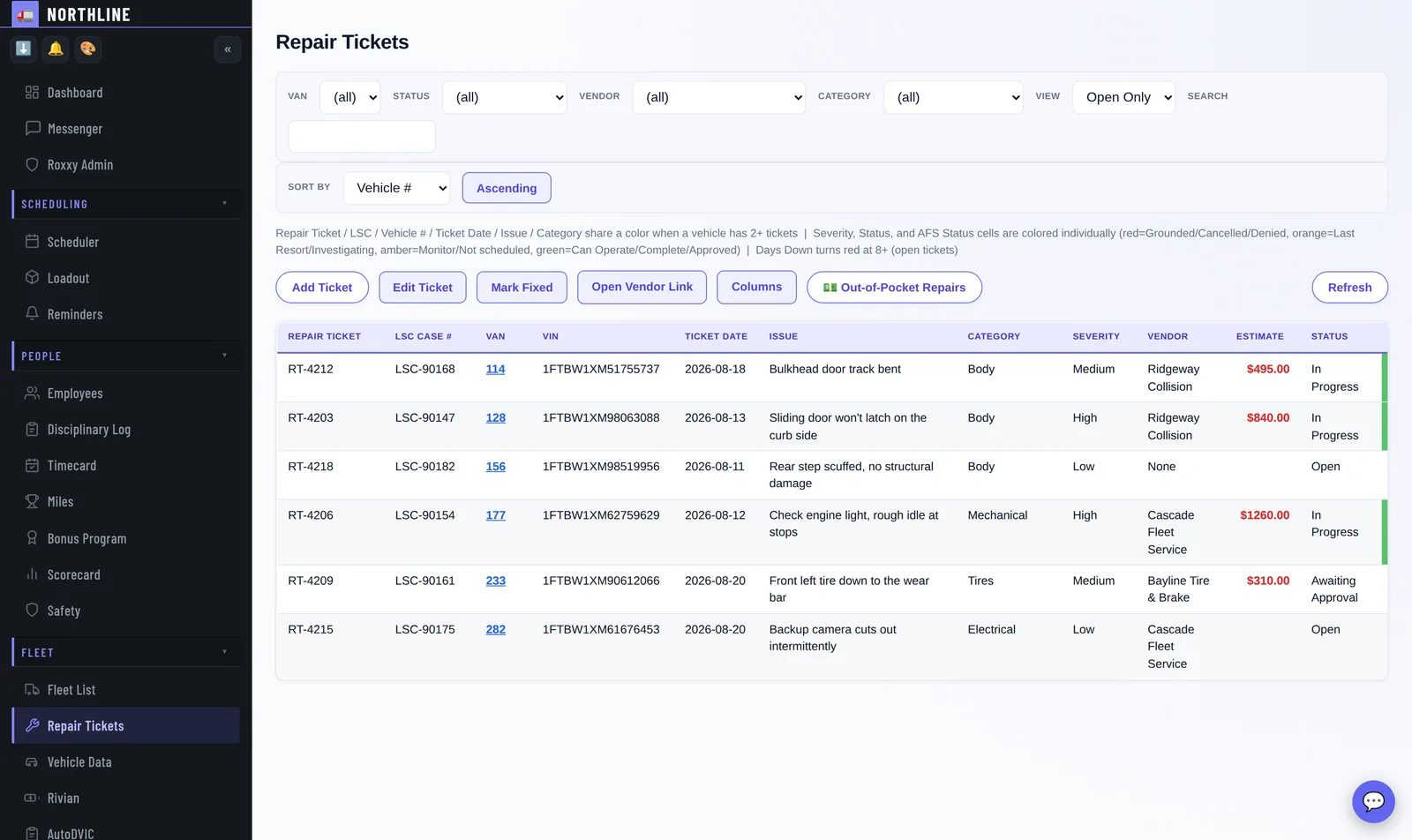
The driver reports it in the Report Center on their phone and a repair ticket opens itself - van, VIN, driver, photos attached. It carries through to the vendor's paperwork and the invoice, and you can still find it in six months.
Days down and EFR approval state are the two columns that cost money, and both are on the row.
The dent Damage Log
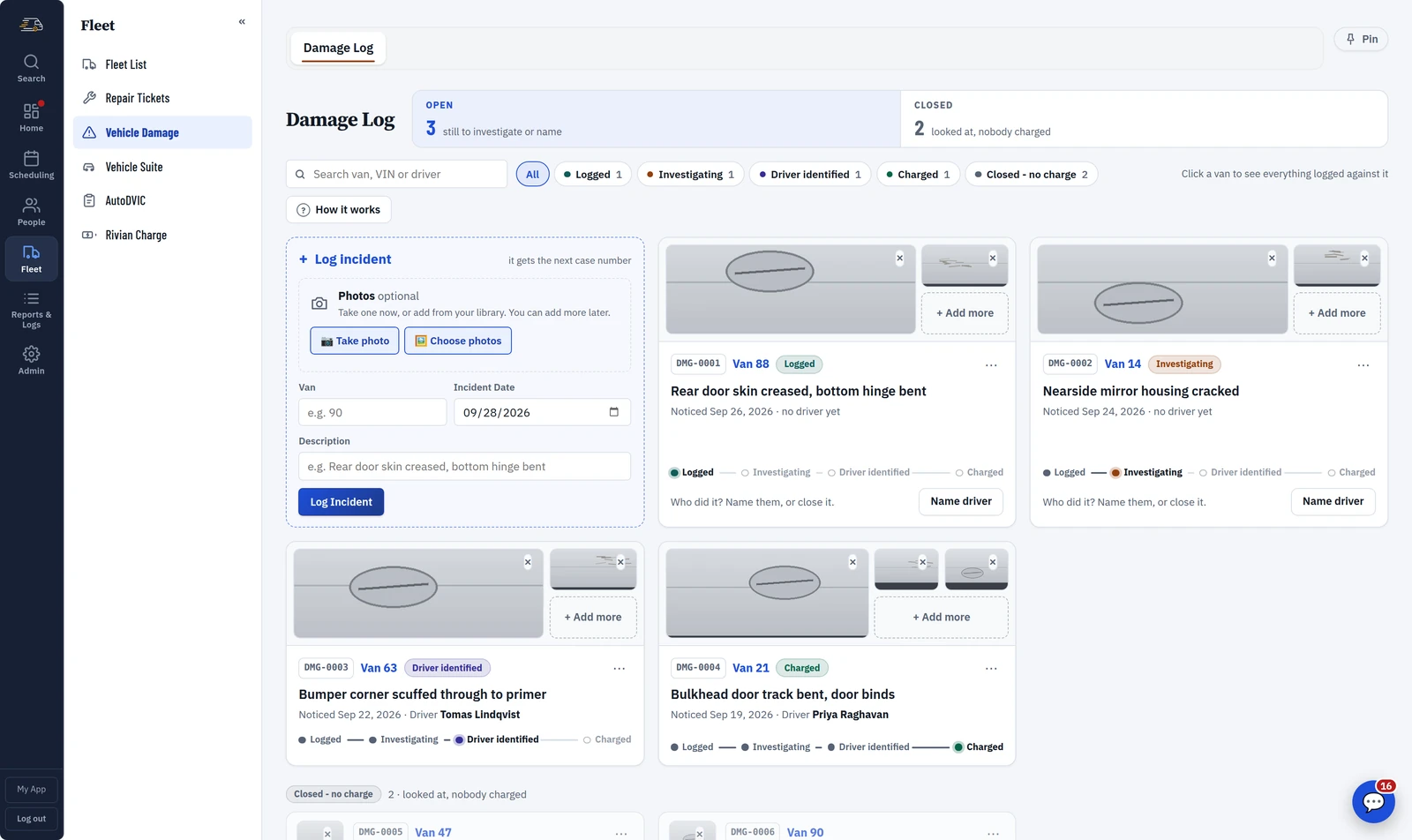
Log the damage when you see it - the van, the day, a line about what happened and the photos - and it gets a case number on the spot. You do not need to know who did it yet.
Each case shows how far it has got: logged, investigating, driver identified, charged. The one next step sits on the card, and damage nobody can be charged for is closed with a reason, so a case that was looked at never reads the same as one that was forgotten.
17:40
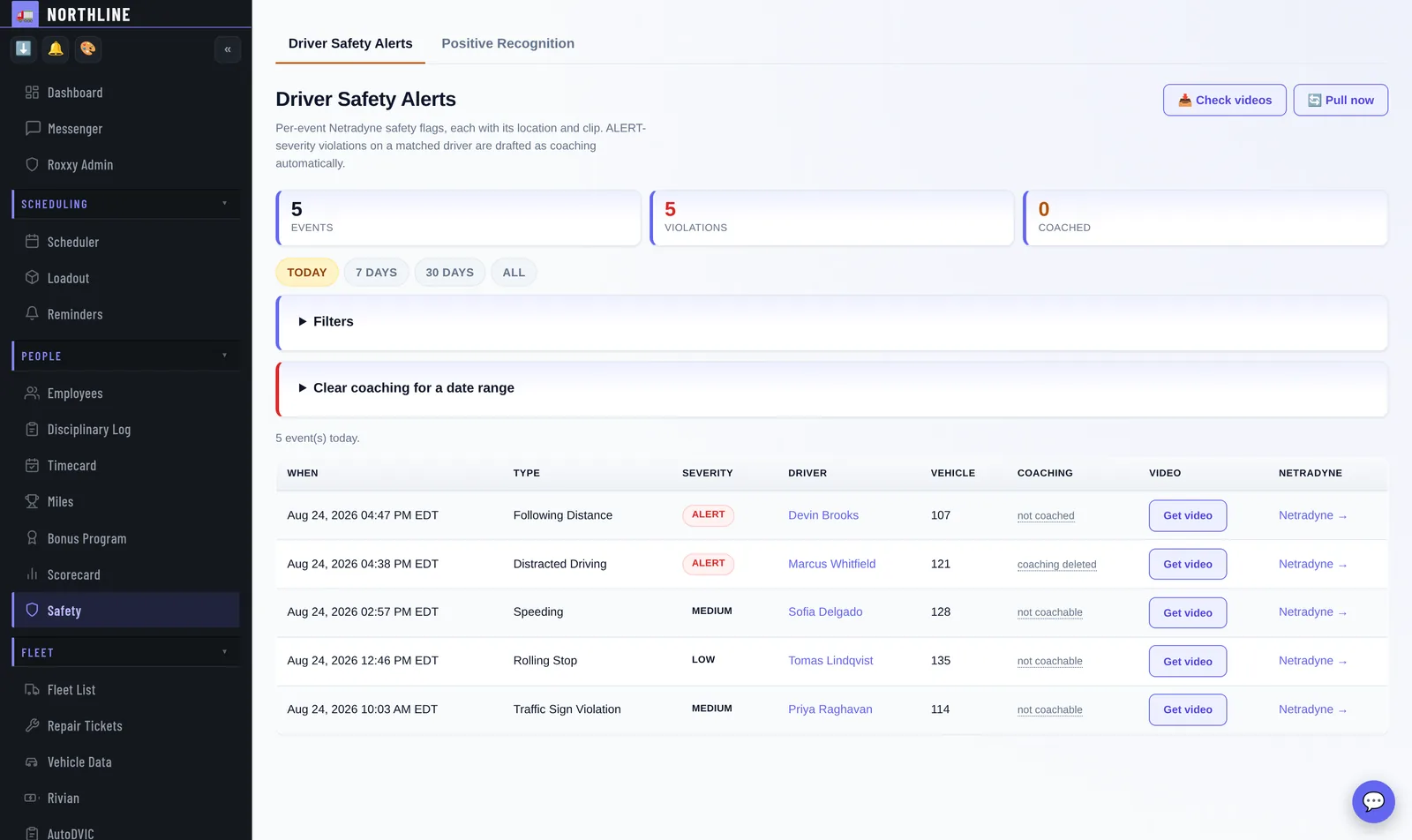
17:40 Safety alerts
The driver and dispatch are notified together and can both look at it, and the driver can dispute it from their phone if it is wrong. Speeding, following distance, distracted driving, sign and signal, seatbelt, hard braking, cornering, backing - every behaviour Netradyne flags, at any severity.
Each arrives with the clip and the driver already matched, and the coaching goes to the driver on its own, with a link to the footage - behaviour by behaviour, you choose which ones coach themselves. Drivers can request and dispute their own footage from their phone, which takes a whole category of argument off the office.
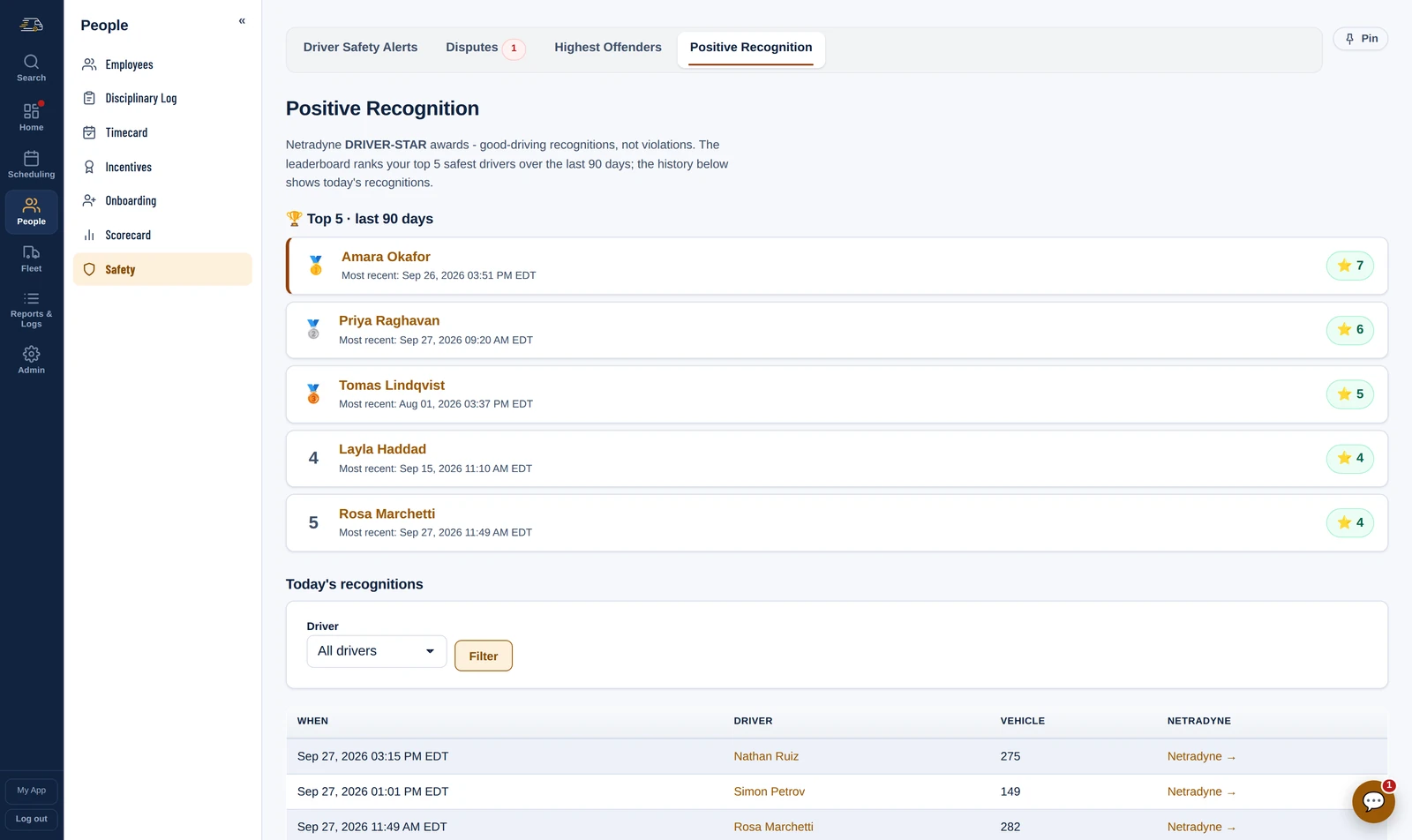
The other side of it Positive Recognition
Netradyne flags good driving too - a safe following distance held, a full stop at a sign. Those DRIVER-STARs are counted apart from the violations and ranked: the five safest drivers over ninety days, and who was recognised today.
A driver can be thanked on the day it happens, automatically, and a DRIVER-STAR never counts toward a coaching threshold.
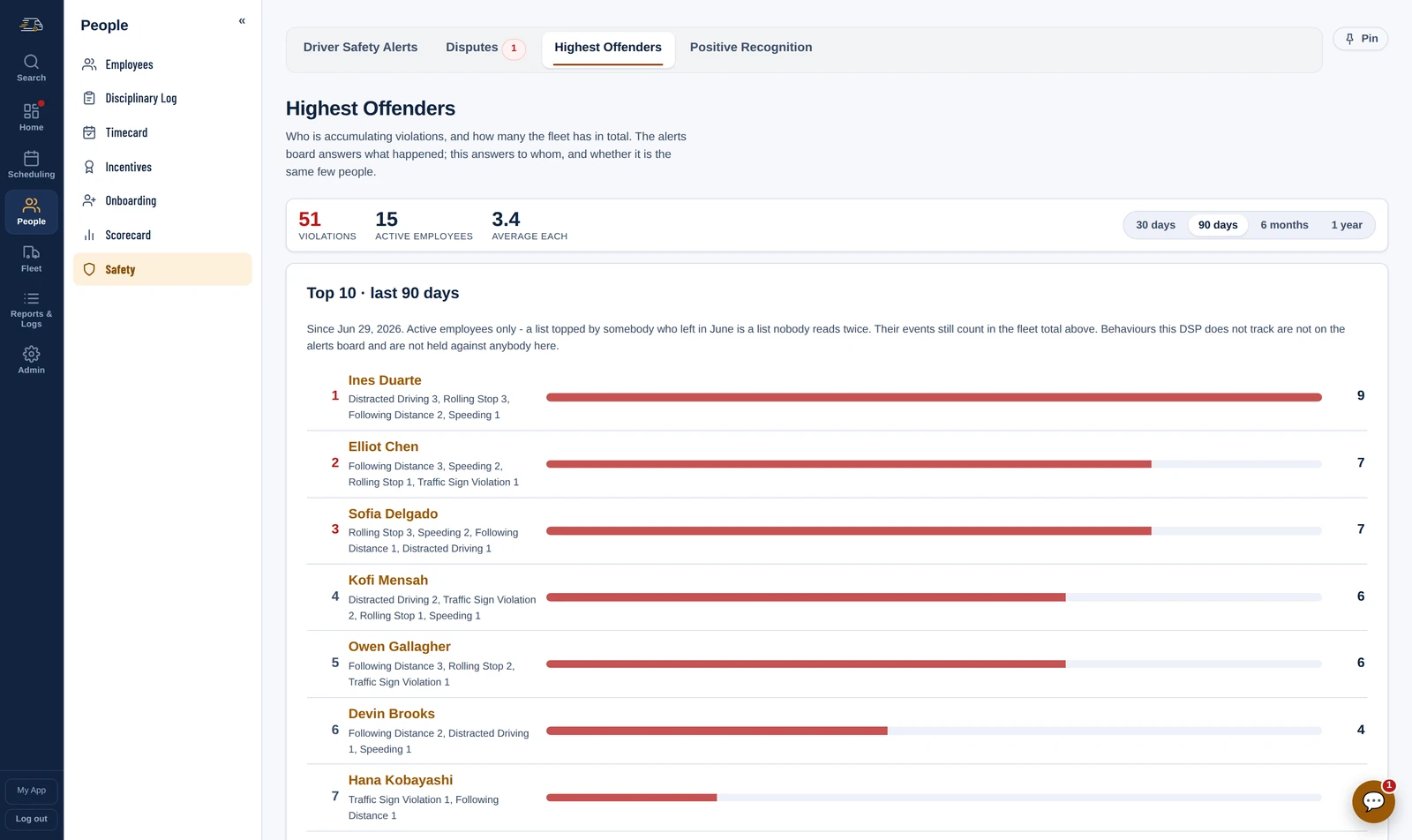
The pattern Highest Offenders
One flag is an event. Nine in ninety days is a conversation. Highest Offenders ranks who is accumulating violations, what kind, and how the fleet compares - over thirty days, ninety, six months or a year.
Active drivers only, so the list is the people you can still do something about, and a behaviour you do not track is not held against anybody.
All week
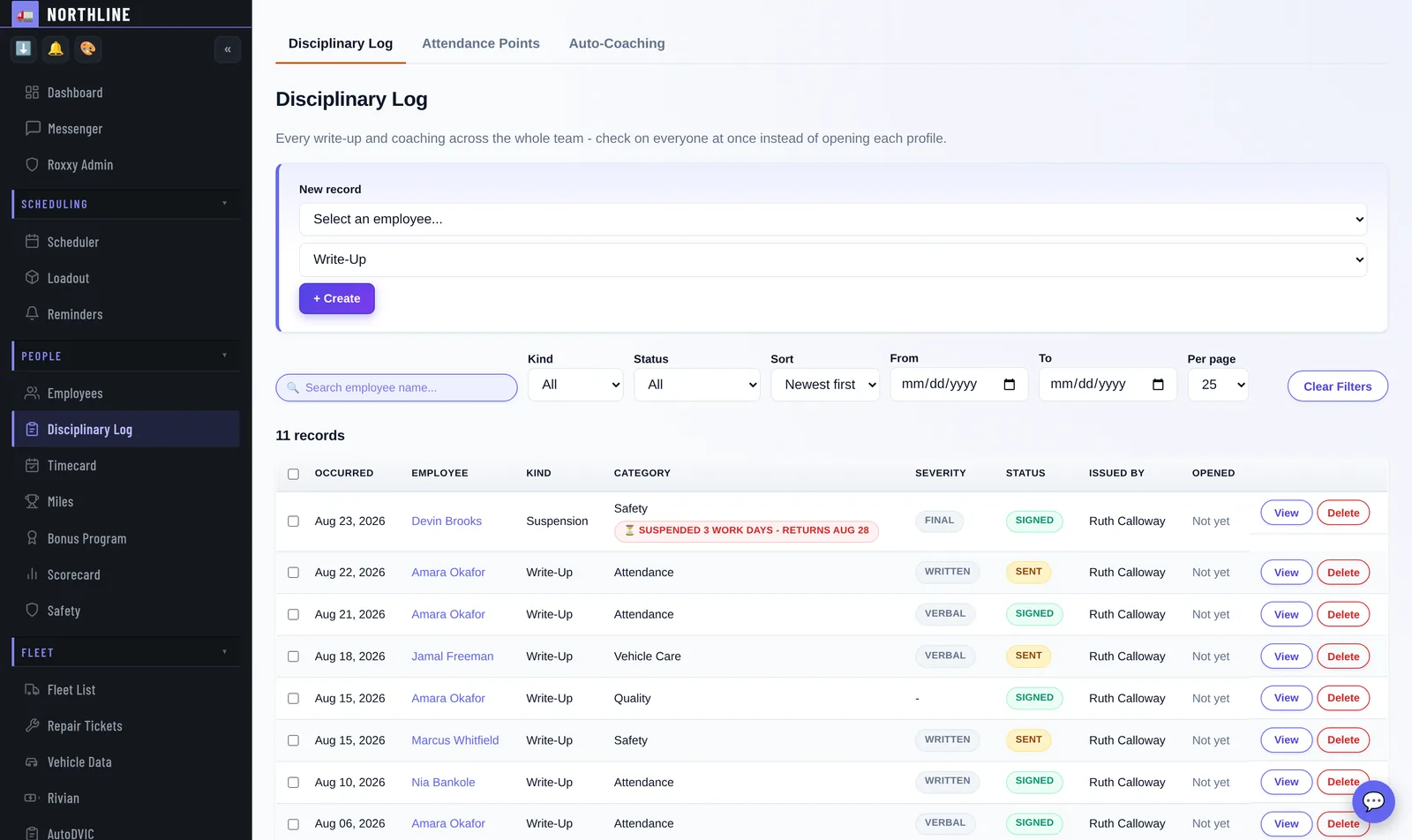
Through the week Disciplinary Log
Every write-up and coaching across the team, one line each, with the next thing it needs as the only button on the row - send the draft, remind the driver, review a refusal. Chips across the top count what is waiting on a signature, what is still a draft and what was refused, and one button reminds everybody still owing a signature.
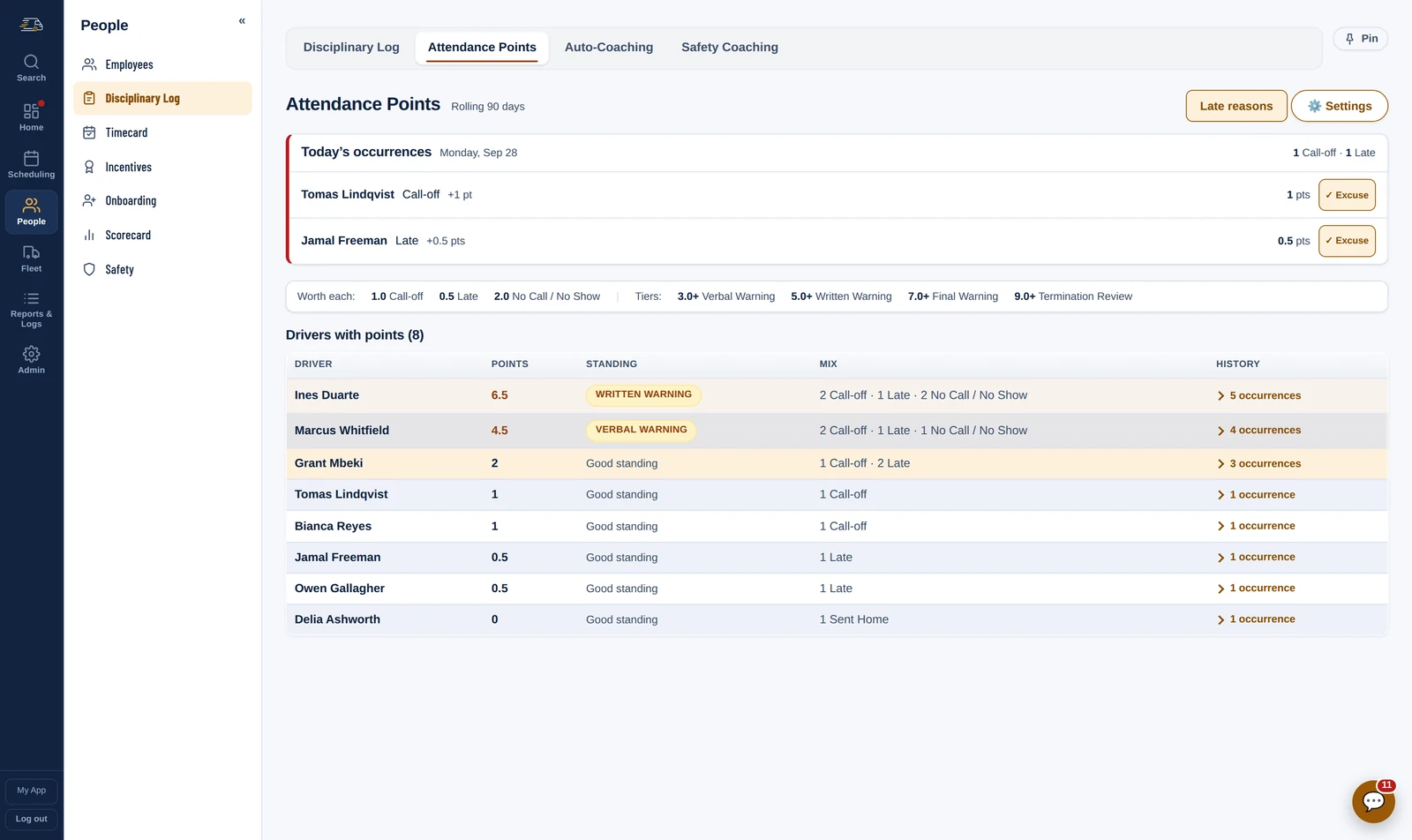
A record that needs a signature holds the driver's route info until they sign or refuse, and the driver signs on their phone. Attendance points sit beside it: you set what a call-off, a late and a no-show are worth, and the escalation tiers. The app never issues anything on its own for attendance - it tells an admin somebody has reached a tier, and the decision stays a person's.
Attendance Attendance Points
Mark a call-off, a late or a no-show on the Loadout board and the points follow, on a rolling ninety days. Today's occurrences sit at the top, each one a click from being excused.
You set what each is worth and where the tiers fall. Crossing one raises an alert in People Alerts, and the decision stays a person's.
Write-ups Write-Up Templates
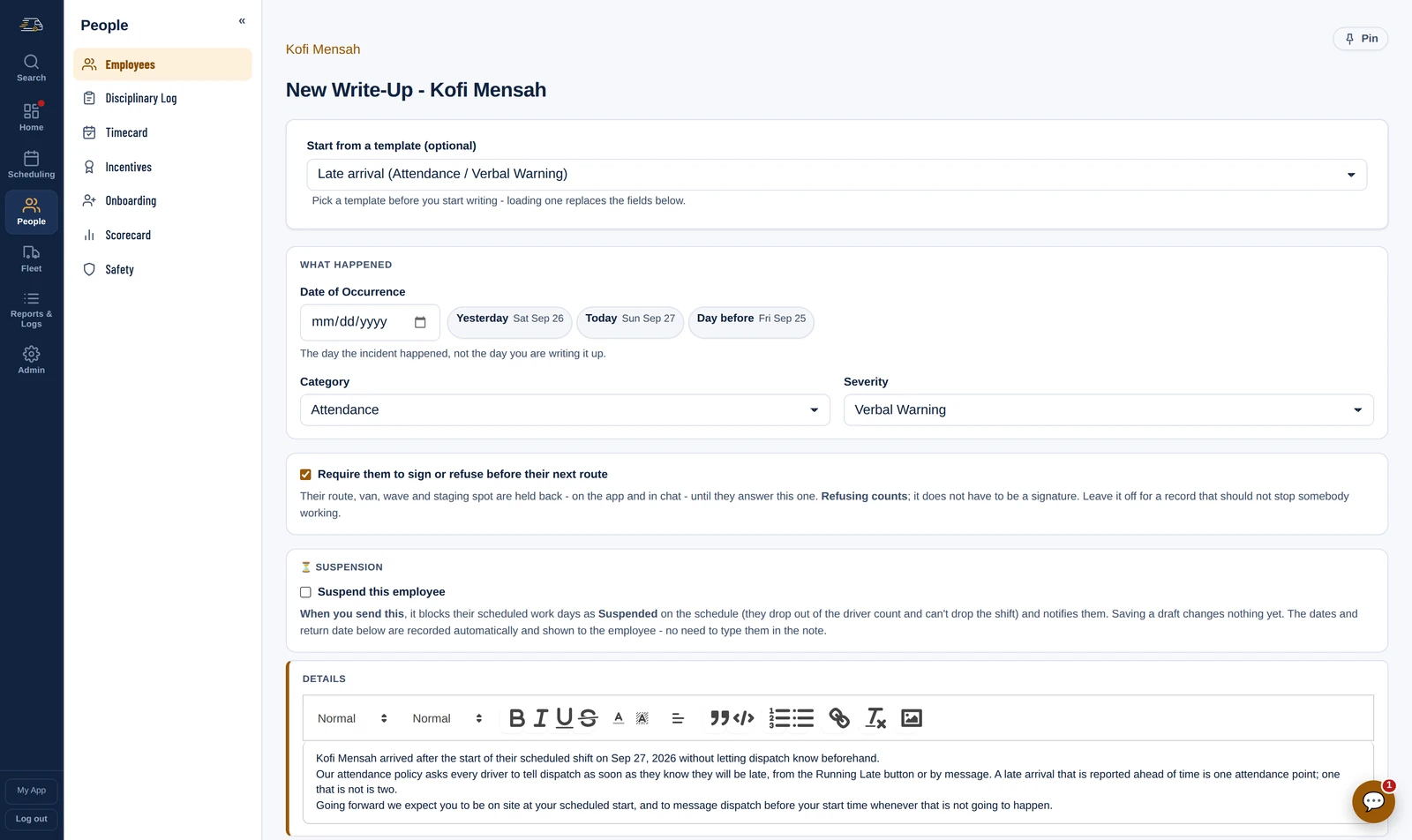
Save the write-ups you issue most as templates - a late arrival, a no-call no-show, a pattern of safety flags - and a new one starts from yours, with the driver's name and the date already in it.
Tick the box to require a signature or a refusal before their next route, and their route sheet waits for the answer. A suspension blocks the days on the schedule the moment it sends.
21:10
21:10 Daily Report
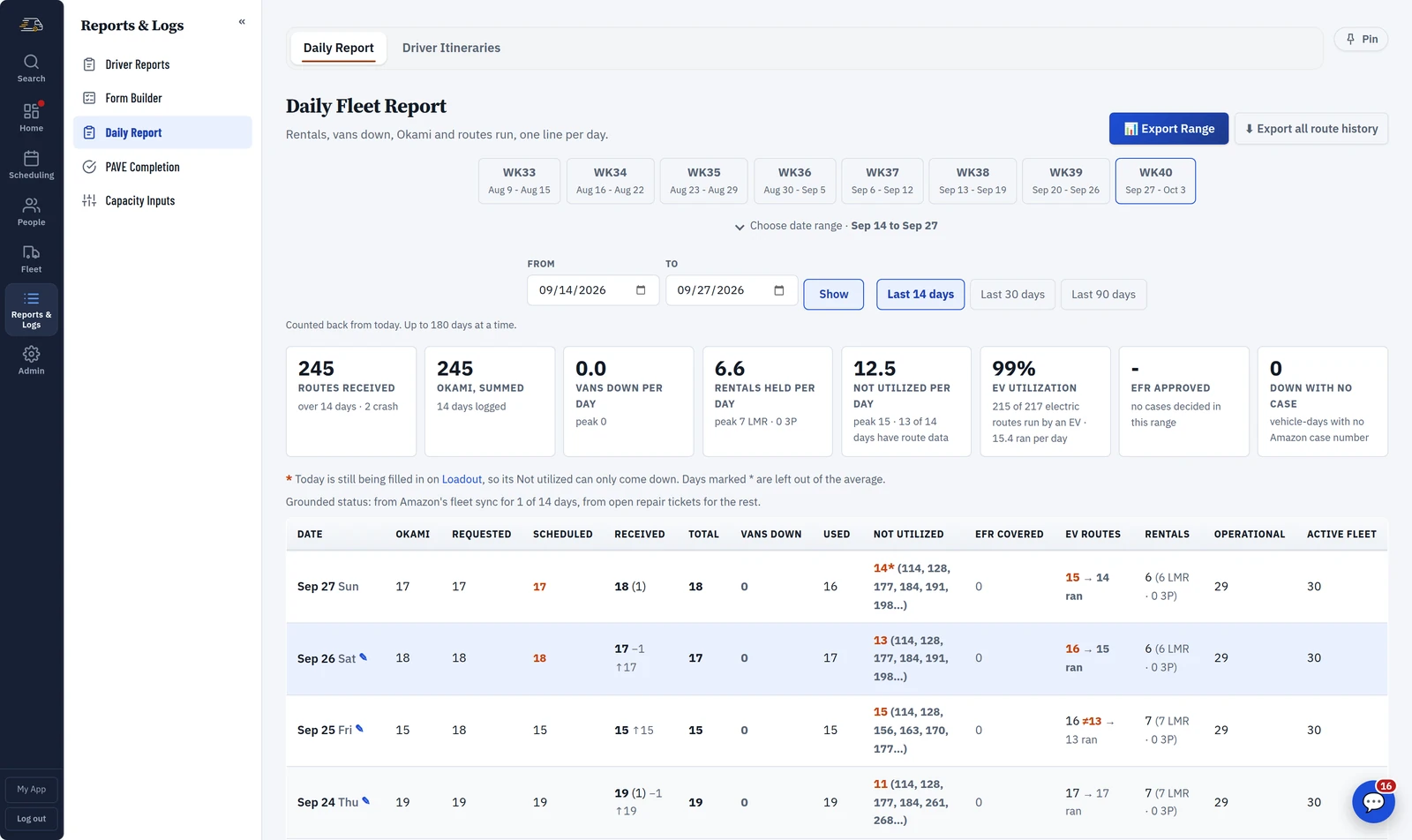
Routes run, reductions, rescues, vans down, rentals - one line per day, built from what already happened rather than typed in at the end of it.
Punches come straight from ADP against your own credentials, so the day reconciles without a spreadsheet. It is also the page that answers Amazon when they ask what happened on a particular Tuesday three weeks ago.
Weekly
The week Scorecard · My Metrics
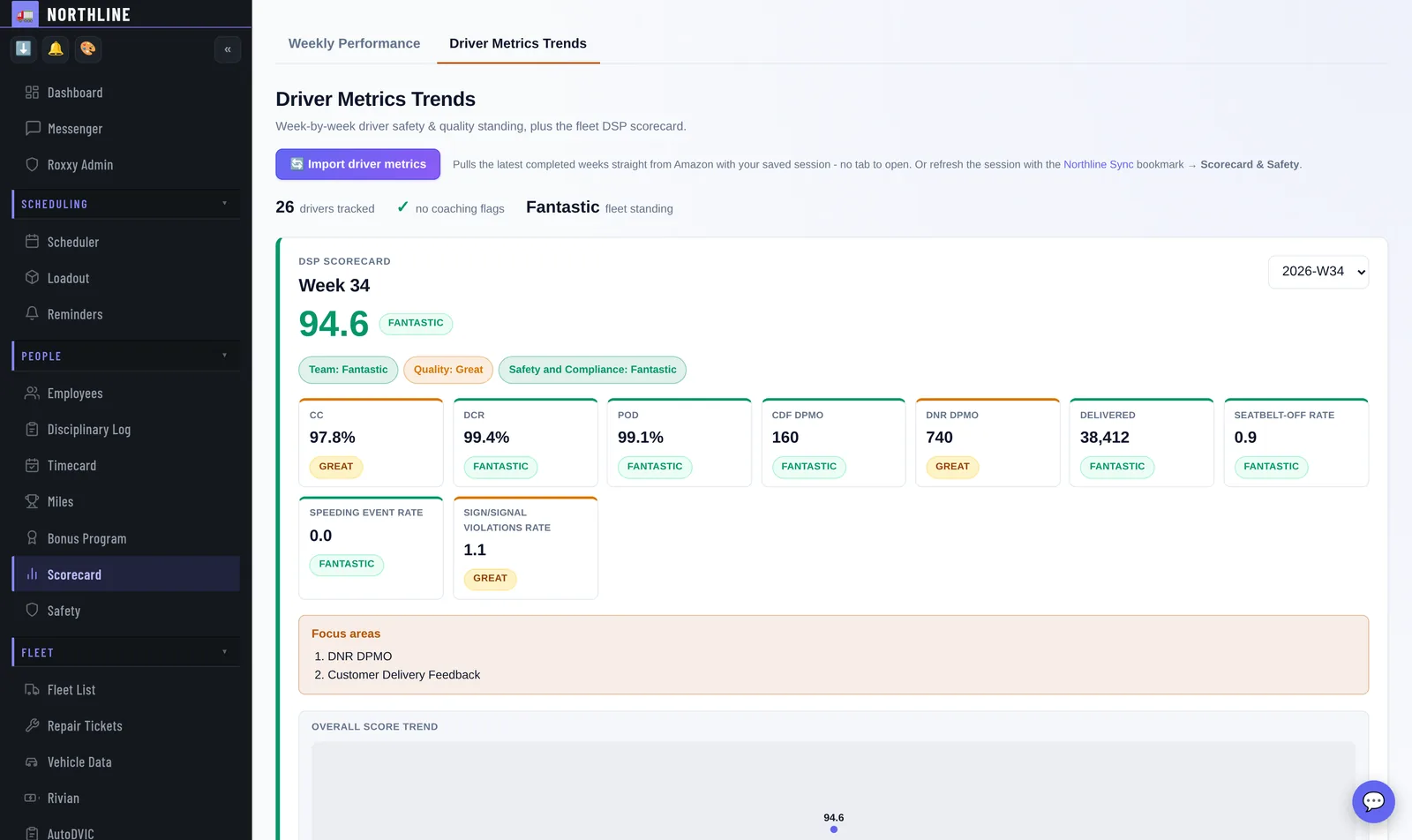
The DSP scorecard as Amazon published it - the score, the standing, the four categories and every metric with its tier - with the areas to focus on called out. Under it, Amazon's numbers per driver, week over week, and a full tier drop or a sharp decline raises itself.
Drivers see their own, on their phone, the morning it lands - not a screenshot somebody remembered to send on Thursday. A driver who can see the number they are being judged on argues about it far less.
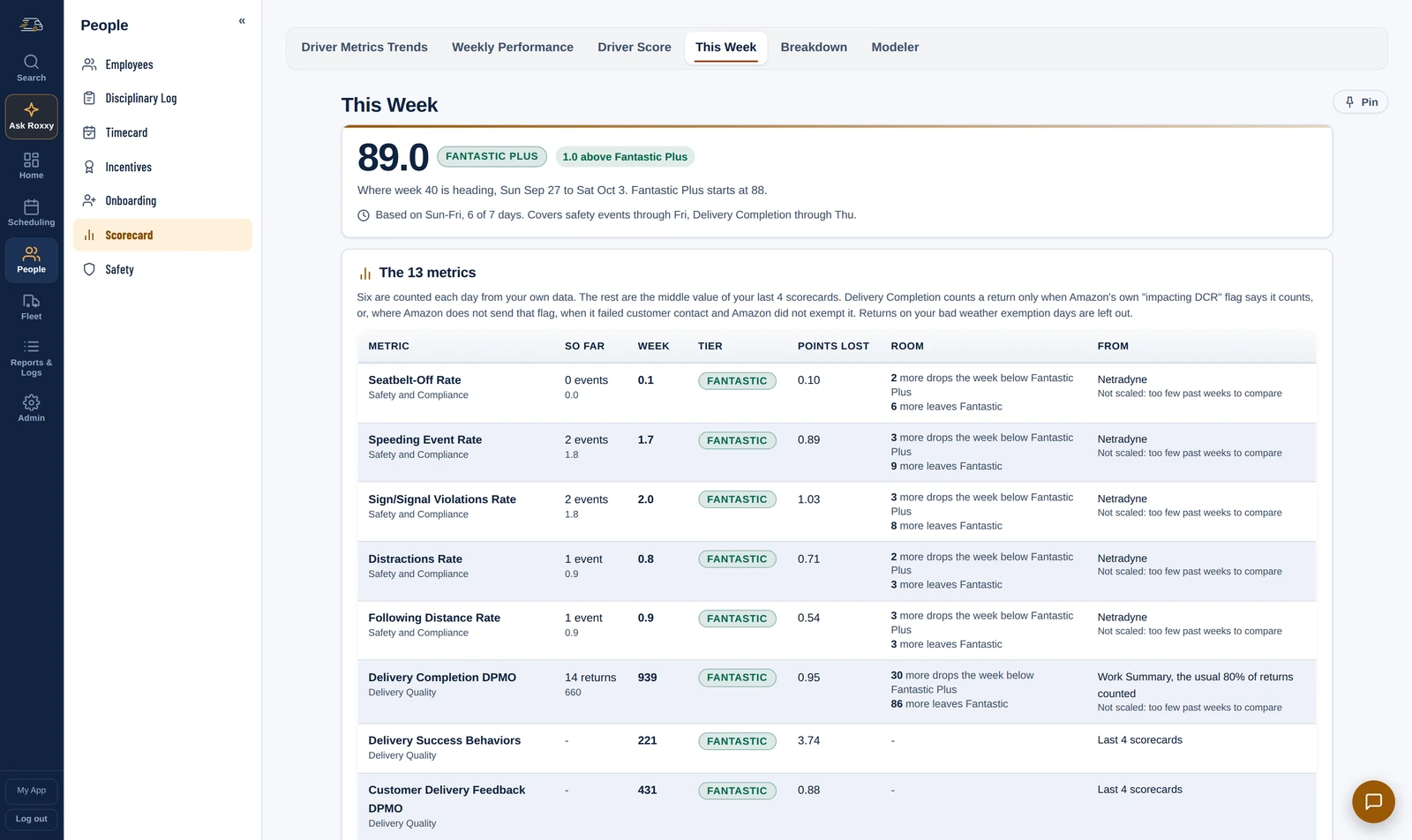
The week so far Scorecard · This Week
The scorecard arrives a week late, when the week is already over. This Week runs the days so far through the same arithmetic, so you know where you stand every day: the score, the standing, how far it is from the Fantastic Plus line, and which metric is closest to costing it.
Each metric says how many more events it can take before it costs you, and the drivers whose events cost the most are listed to coach while there are still days left. At 7 PM the office gets it as a post: the standing, the closest risks and who to coach. It is on the dashboard too.
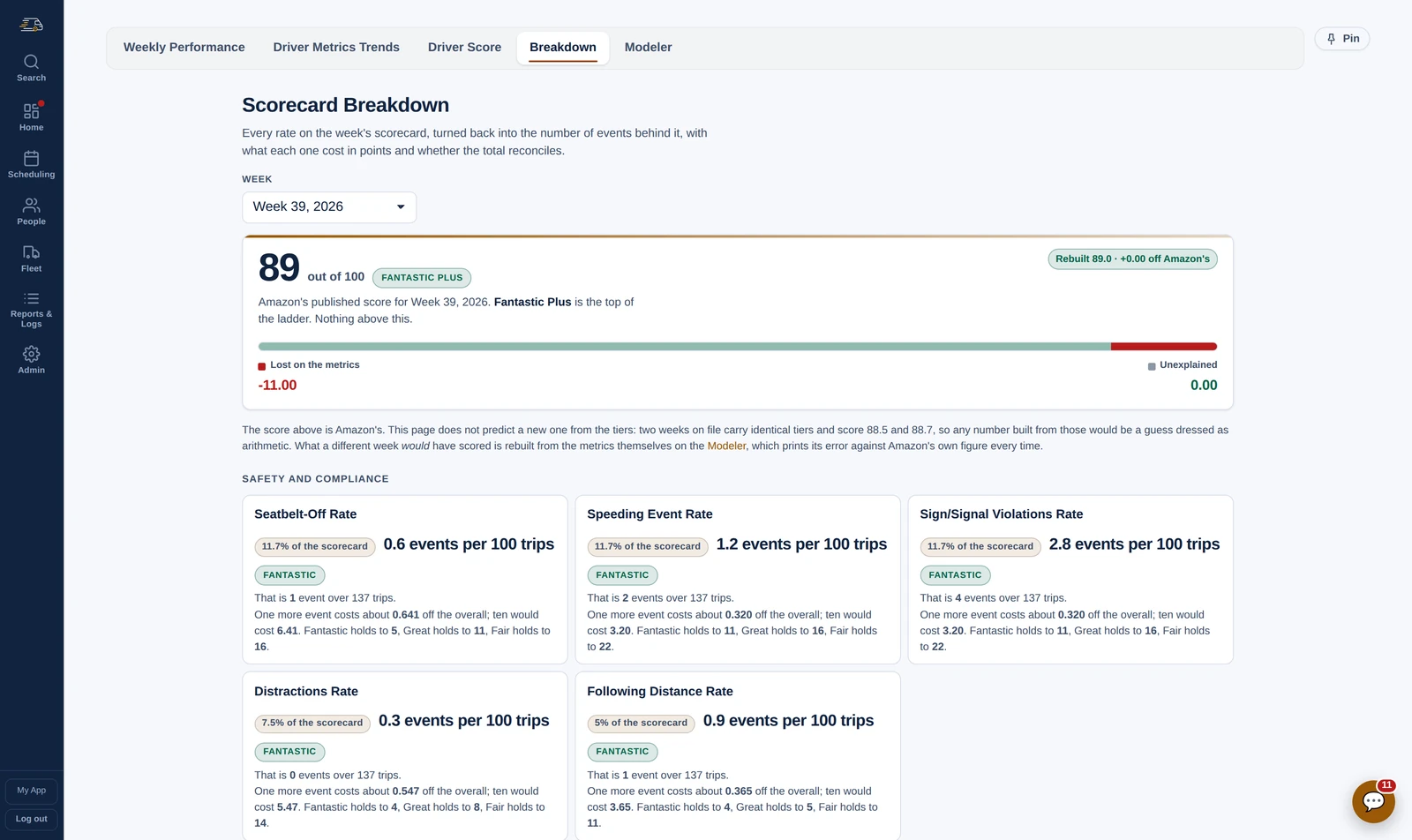
The breakdown Scorecard Breakdown
Each rate on Amazon's scorecard, turned back into the events behind it - four sign violations over 137 trips, seven delivery defects over 34,423 packages - with what one more would cost and how many each tier can hold.
At the top, the week's score and standing, and how far it is to the next standing up - or, on a Fantastic Plus week like this one, that there is nothing above it.
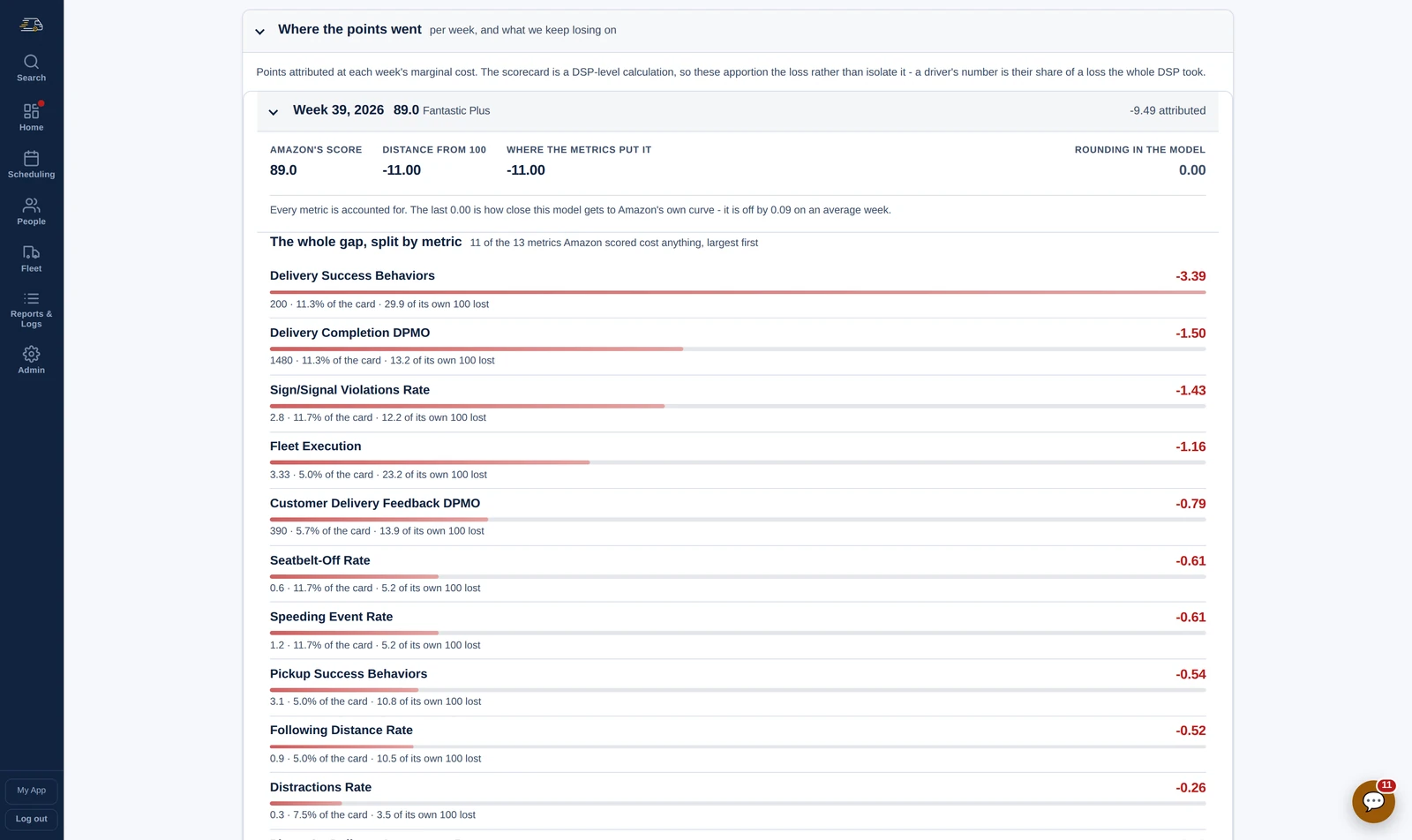
What we keep losing on Scorecard Breakdown
The whole gap, split by metric and largest first, for every week on file - so the metric that costs you every week stands out from the one that had a bad Tuesday.
When a category caps the week at Great, the cap is its own line, because lifting that category is worth more than any one metric under it.
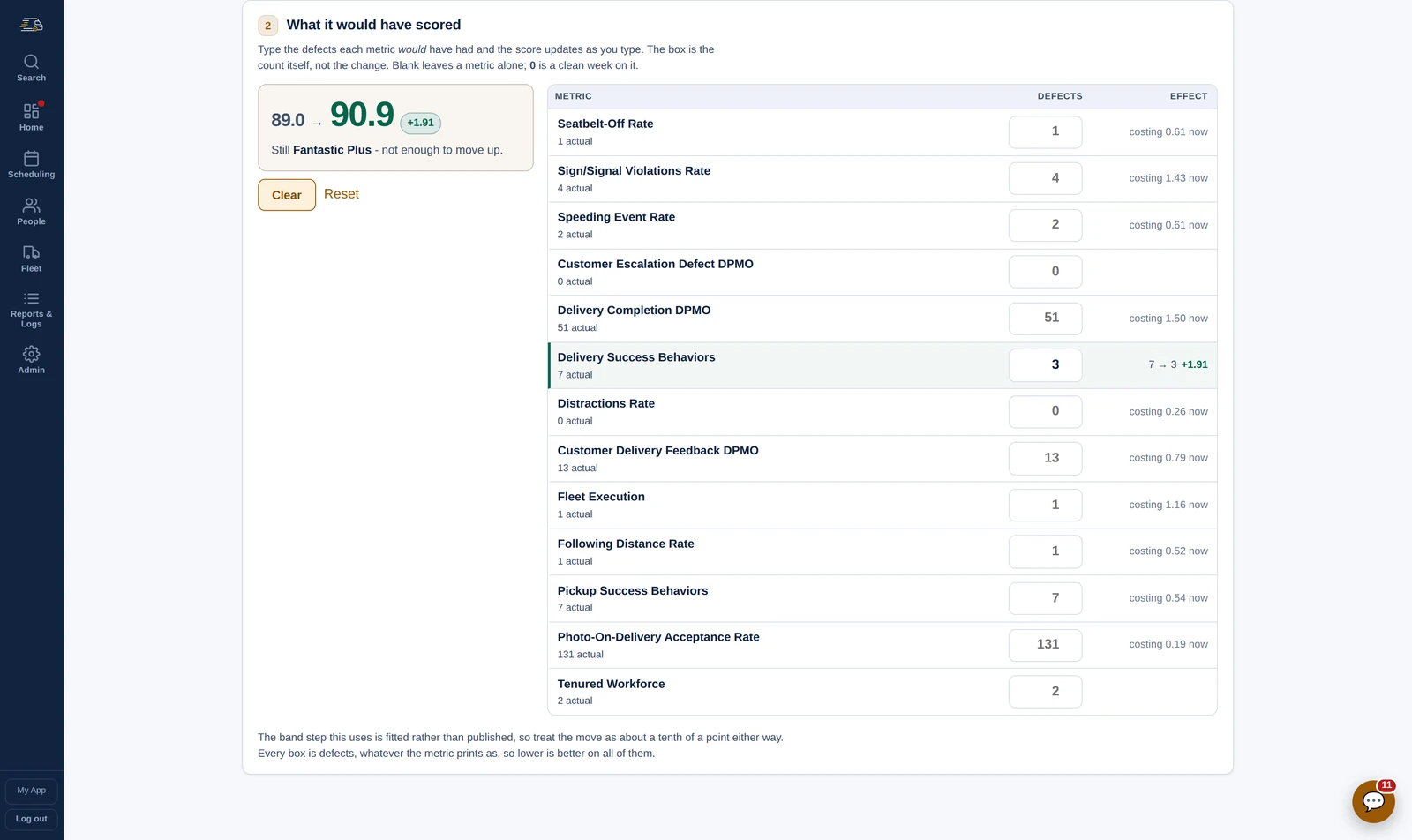
The modeler Scorecard Modeler
Type the week you wish you had had. The counts behind the rates fill in from your own data - trips, packages, pickup stops, the roster, the fleet - and every box is a count of defects, so the question is the one you actually ask: what if we had had three delivery defects instead of seven.
The score and the standing move as you type. Four fewer on one metric takes this Fantastic Plus week from 89.0 to 90.9 - and typing a worse week shows how much room there is before it drops a standing.
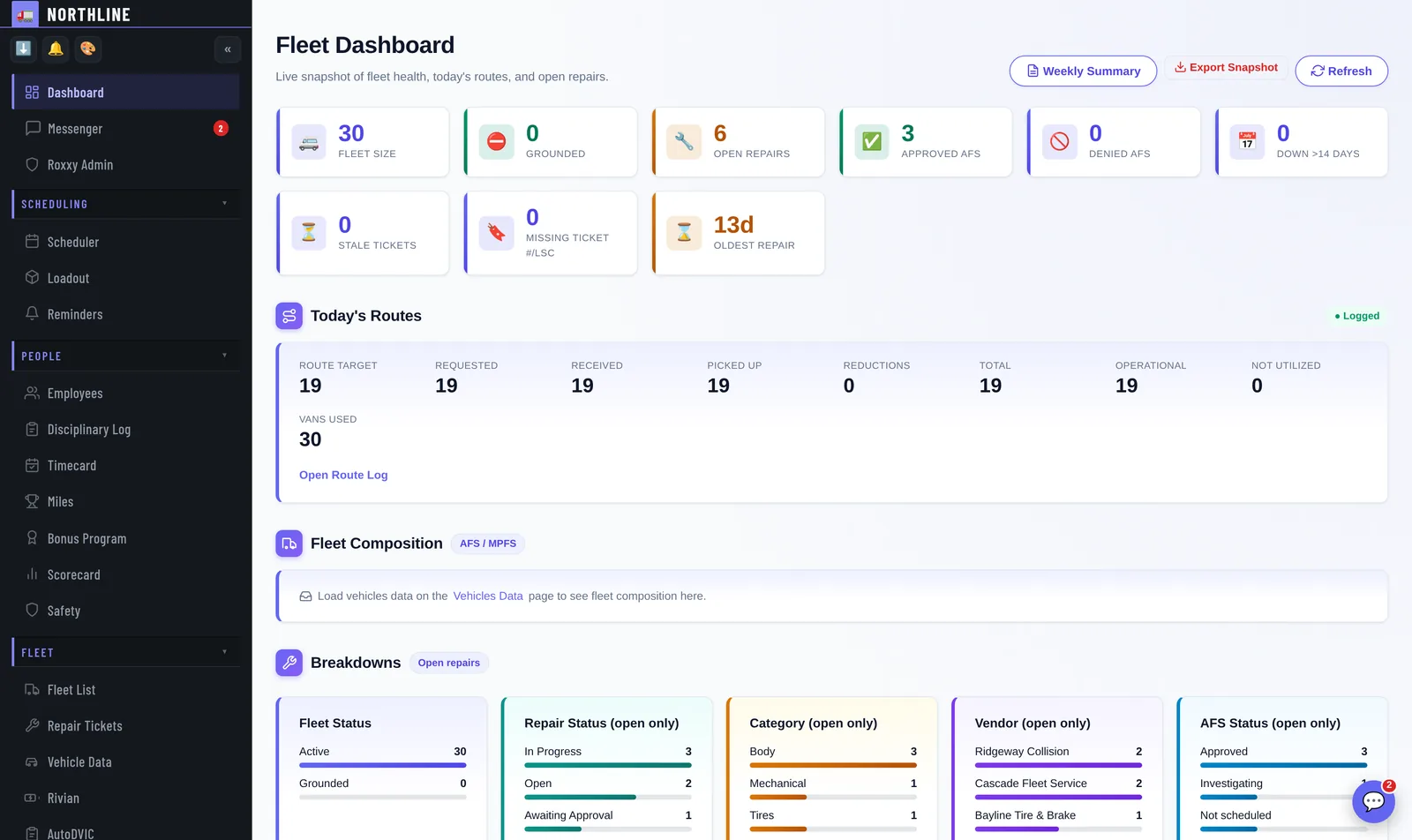
The morning read Fleet Dashboard
Today's routes with a fortnight of trend under them, then tomorrow: routes committed against drivers rostered. Two short is free to fix tonight and a rescue at nine in the morning.
Above it all, a Needs you now list where each line is a link to the thing that fixes it. Below, who was marked off this morning, every sync in one strip, and where the fleet stands.
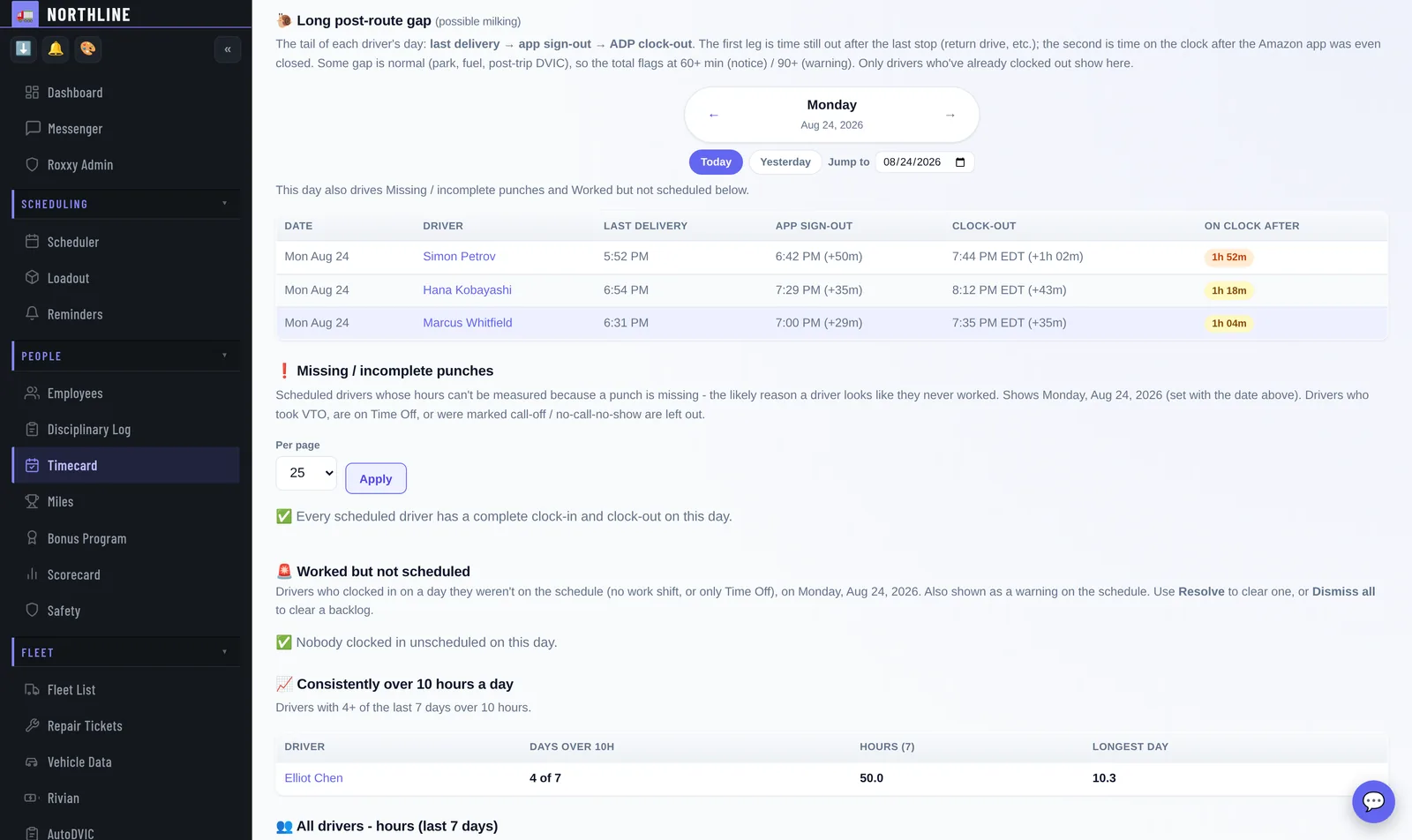
Where the money goes Timecard audit
Last delivery, app sign-out, clock-out - side by side. An hour of paid time between the last stop and the punch stops being invisible.
Missing punches, short days and long days surface the day they happen, not the day payroll runs. The app surfaces the gap; a person still decides what it means.
Any time
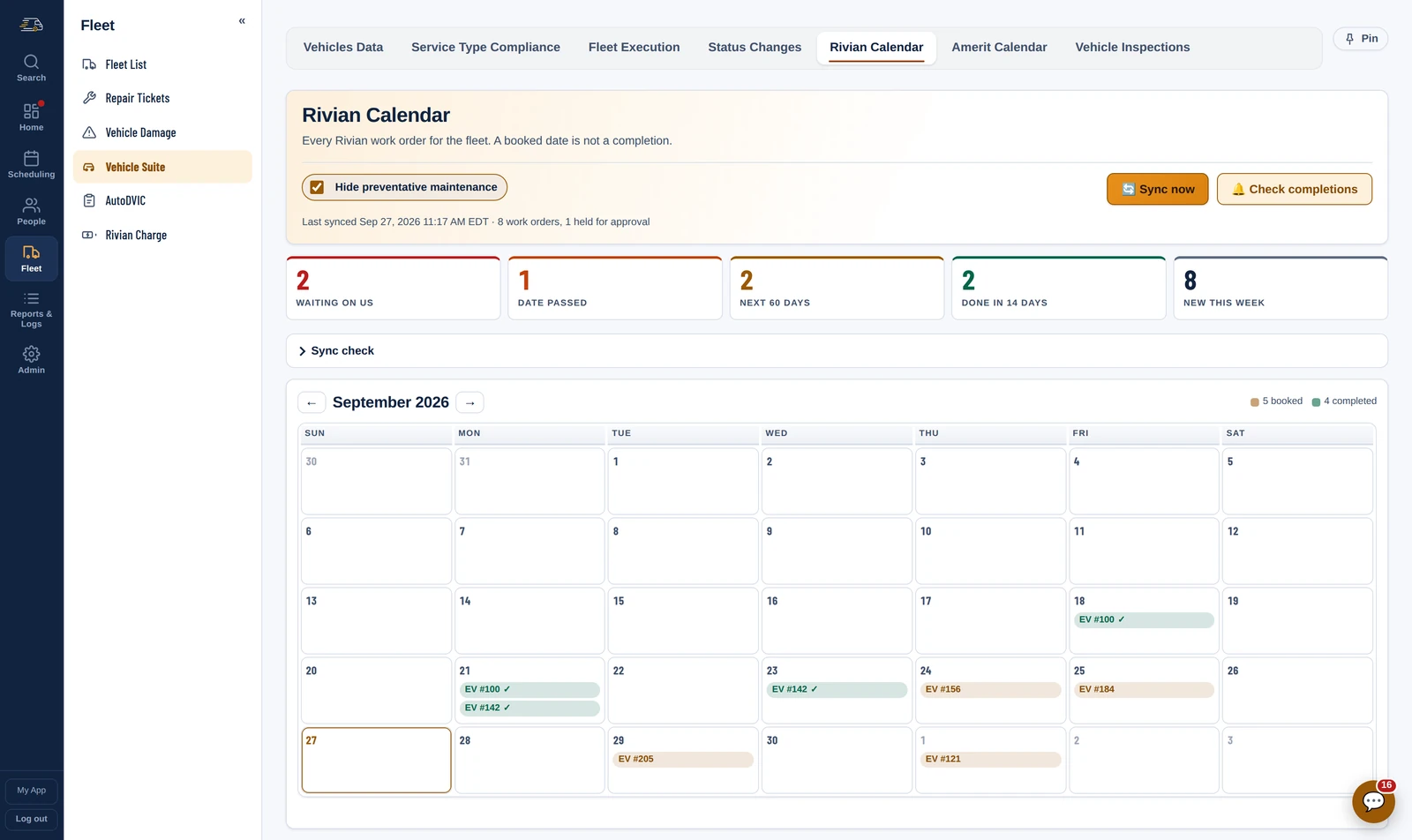
The fleet Rivian · Amerit
Rivian and Amerit on one page, in the buckets that decide a morning: what they are waiting on you for, whose booked date has gone by with nothing finished, and what actually got done this week. A booked date is not a completion, and this is the only page that says so out loud. When Rivian prices a job, the estimate goes onto the matching repair ticket.
State of charge for every Rivian sits beside it, with the driver who has that van on today's board already named - so a van that will not make the morning raises itself before dispatch, not at 09:40 on the phone.
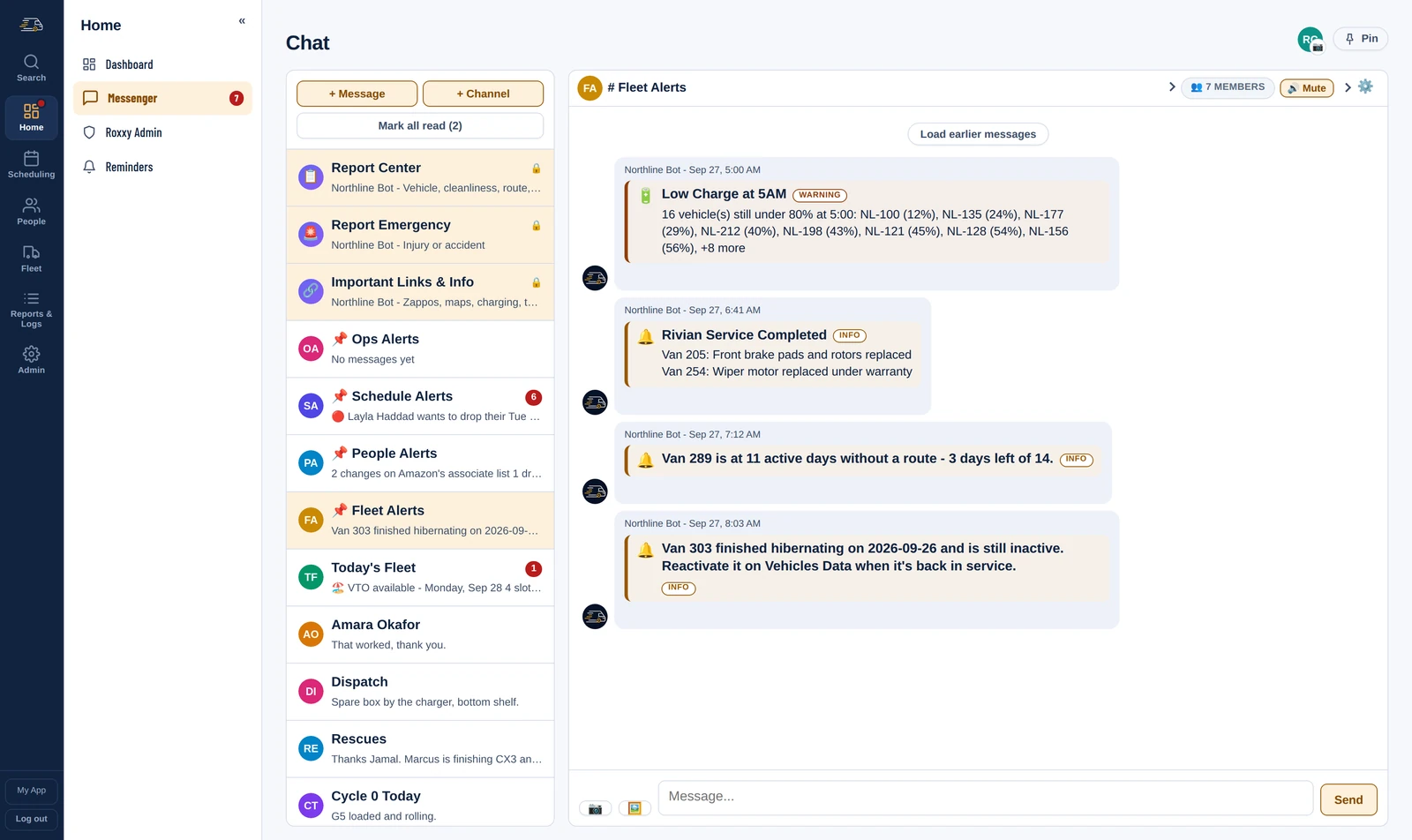
Fleet Alerts Fleet Alerts
The 5AM charge sweep, a Rivian repair that finished overnight with what was done, the parts, labor and cost, a branded van running out of days to be driven, a van back from hibernation that nobody reactivated - each lands in Fleet Alerts as it happens, in the one channel the fleet manager already reads.
Any of them can be pointed at a different channel, or switched off, one alert at a time.
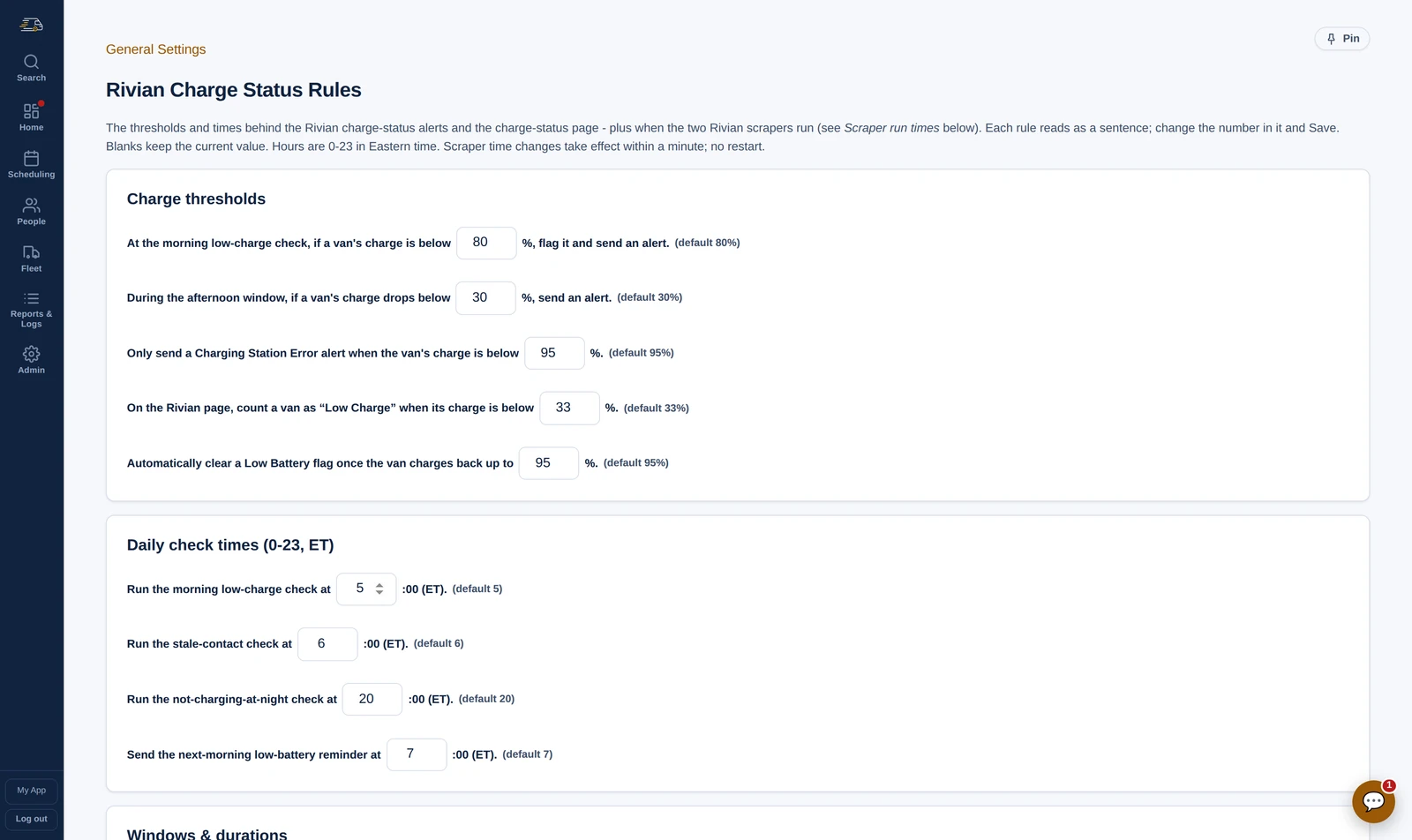
Your thresholds Rivian Charge Rules
What counts as low charge at the morning check, how far a van can drop in the afternoon before it matters, how long a van can go without reporting in - each rule reads as a sentence with the number in it, and you change the number.
When the charge checks run is on the same page, so the schedule is your decision too.
Any time
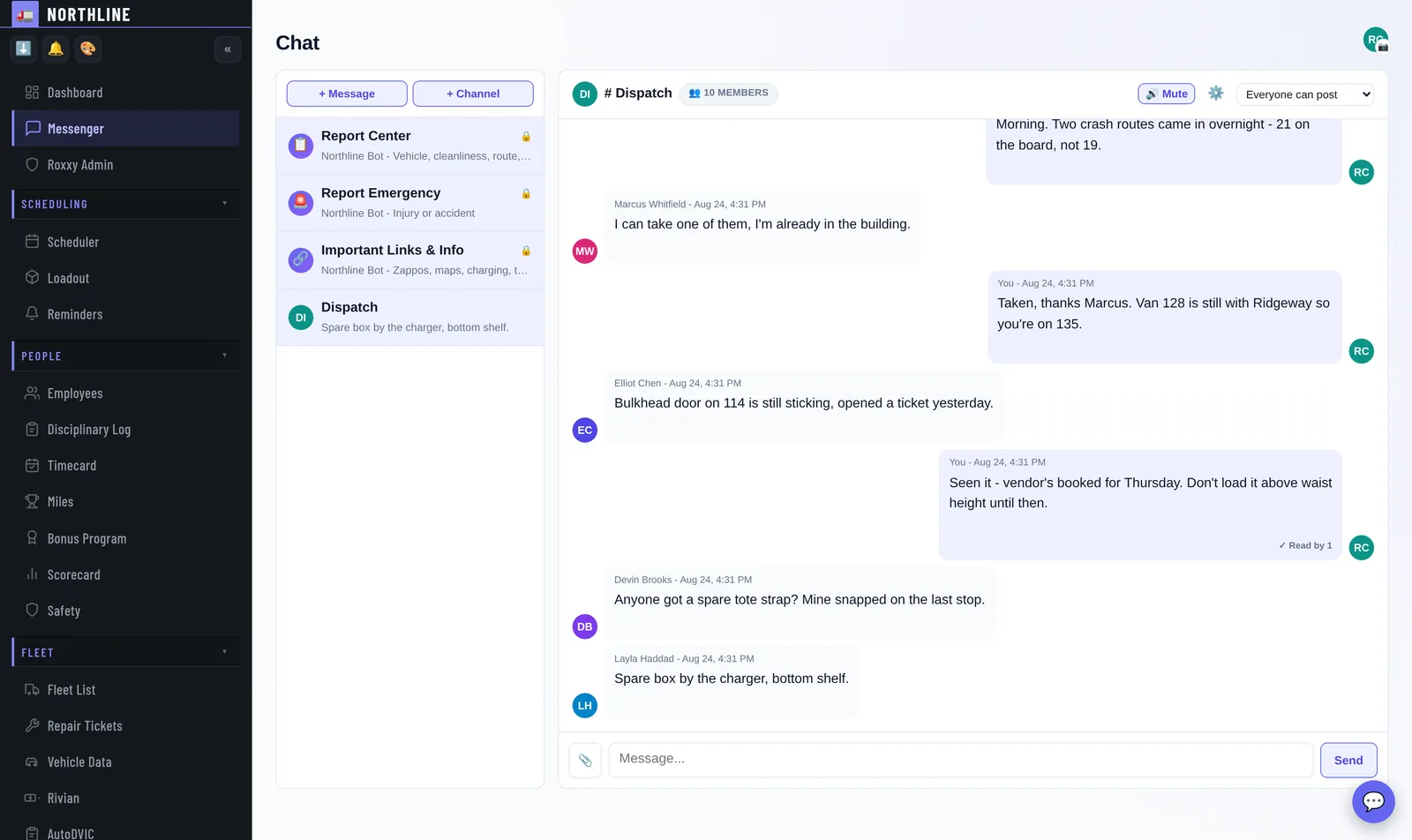
Talking to them Messenger
Make a channel for anything the station runs on: Today's Fleet, Cycle 0, rescues, lost and found, announcements. And message any driver directly.
Pinned above them are People Alerts, Fleet Alerts and Schedule Alerts, and those you do not make - they fill themselves. It is the same app their schedule and their hours are in, so there is nothing new to install and nothing extra to check.
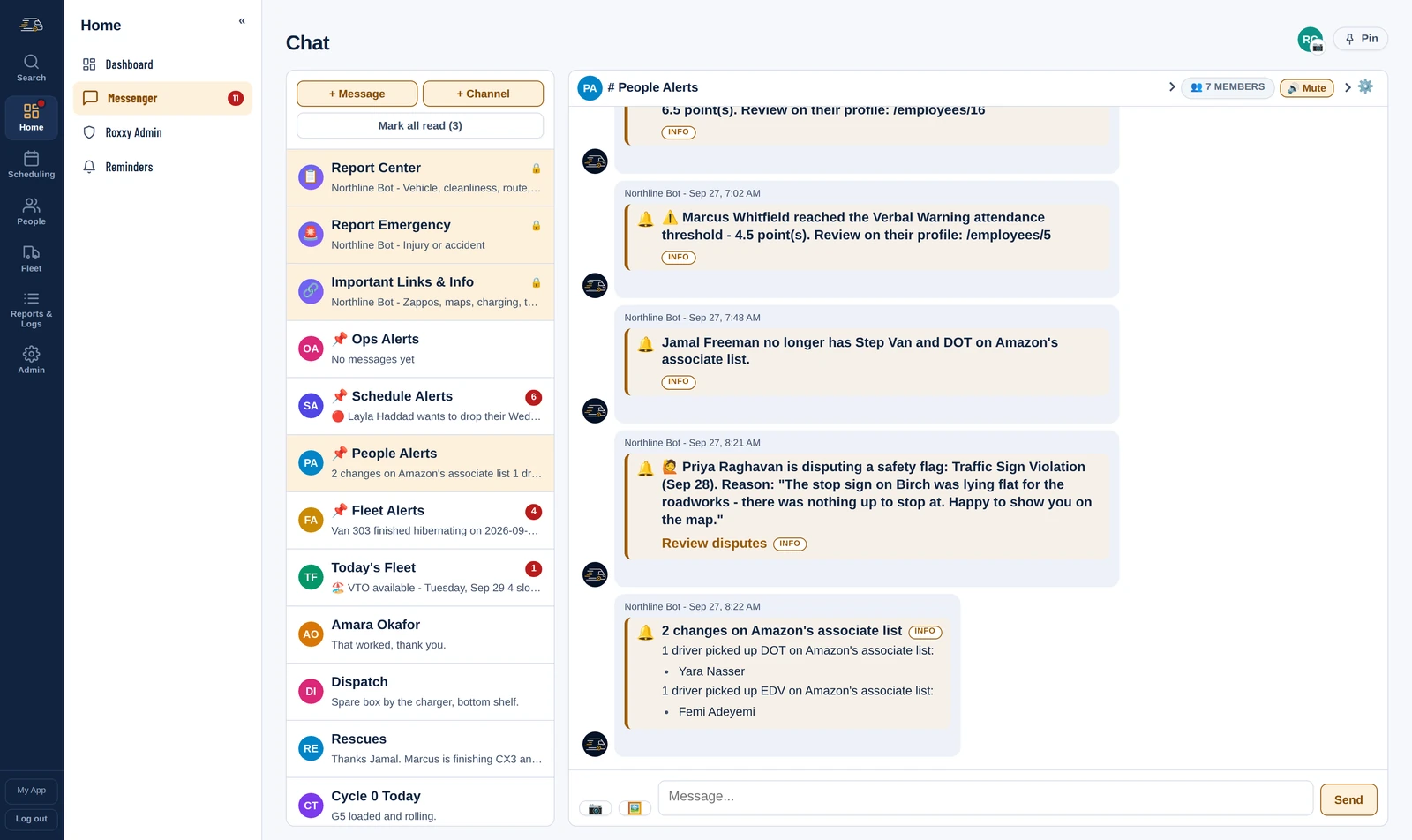
People Alerts People Alerts
Amazon's associate list is read on a schedule and compared with the last read. A driver who lost Step Van and DOT, one who picked up DOT, one newly qualified on the EDV - each is a line in People Alerts, named, before the board is built around a qualification somebody no longer has.
A driver disputing a camera flag lands in the same channel, with the reason in their own words and a link to the disputes queue. Attendance thresholds crossed arrive there too.
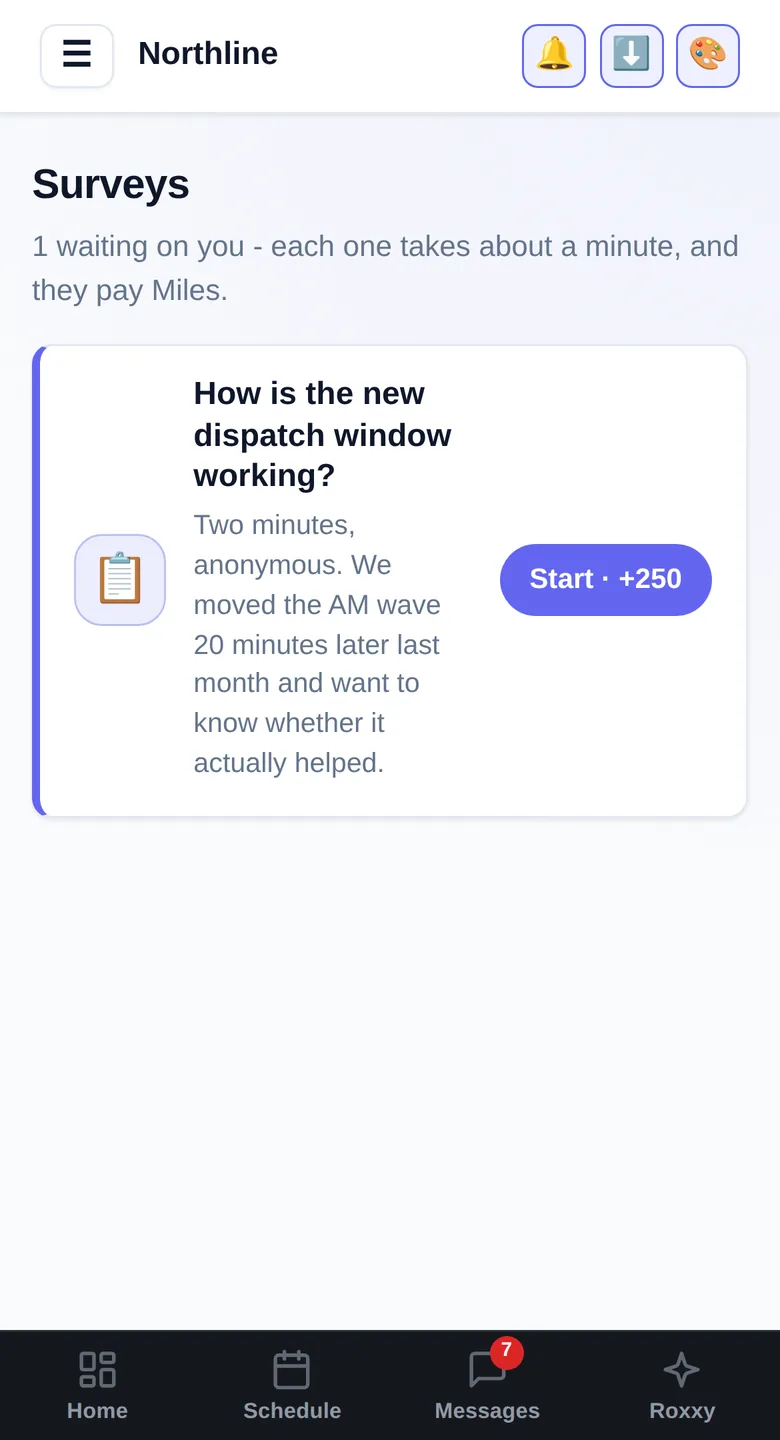
Keeping them Surveys and rewards
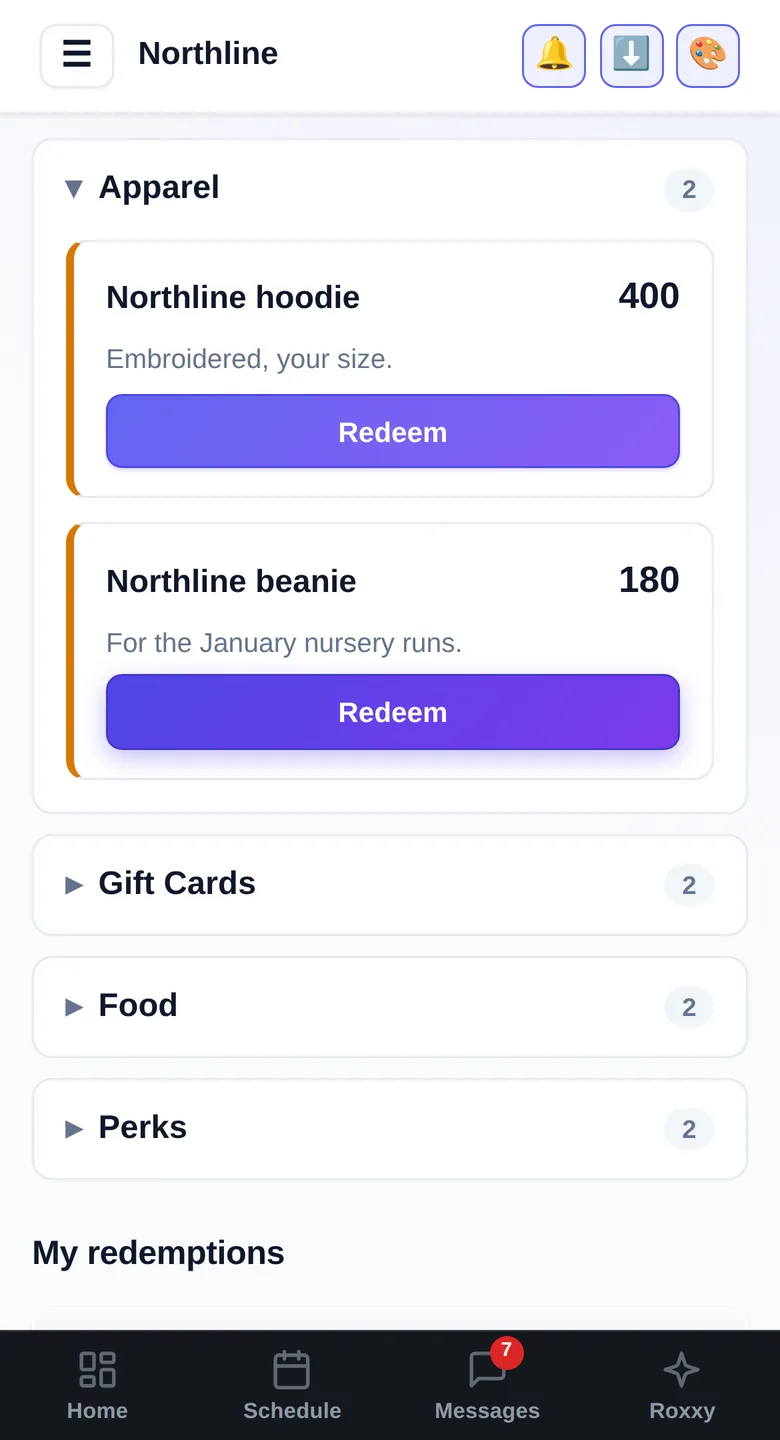
Ask the fleet something - whether the new dispatch window is working, why Tuesdays keep running short - and it arrives as a notification in the app their schedule is already in. Anonymous if you want it to be, and it pays points for answering, which is why it gets answered.
The same points they earn for attendance, for metrics, for covering a route, spent in a shop you stock: gas cards, swag, an early finish. Your currency, your prizes, your thresholds.
Any time
Ask it Roxxy Admin
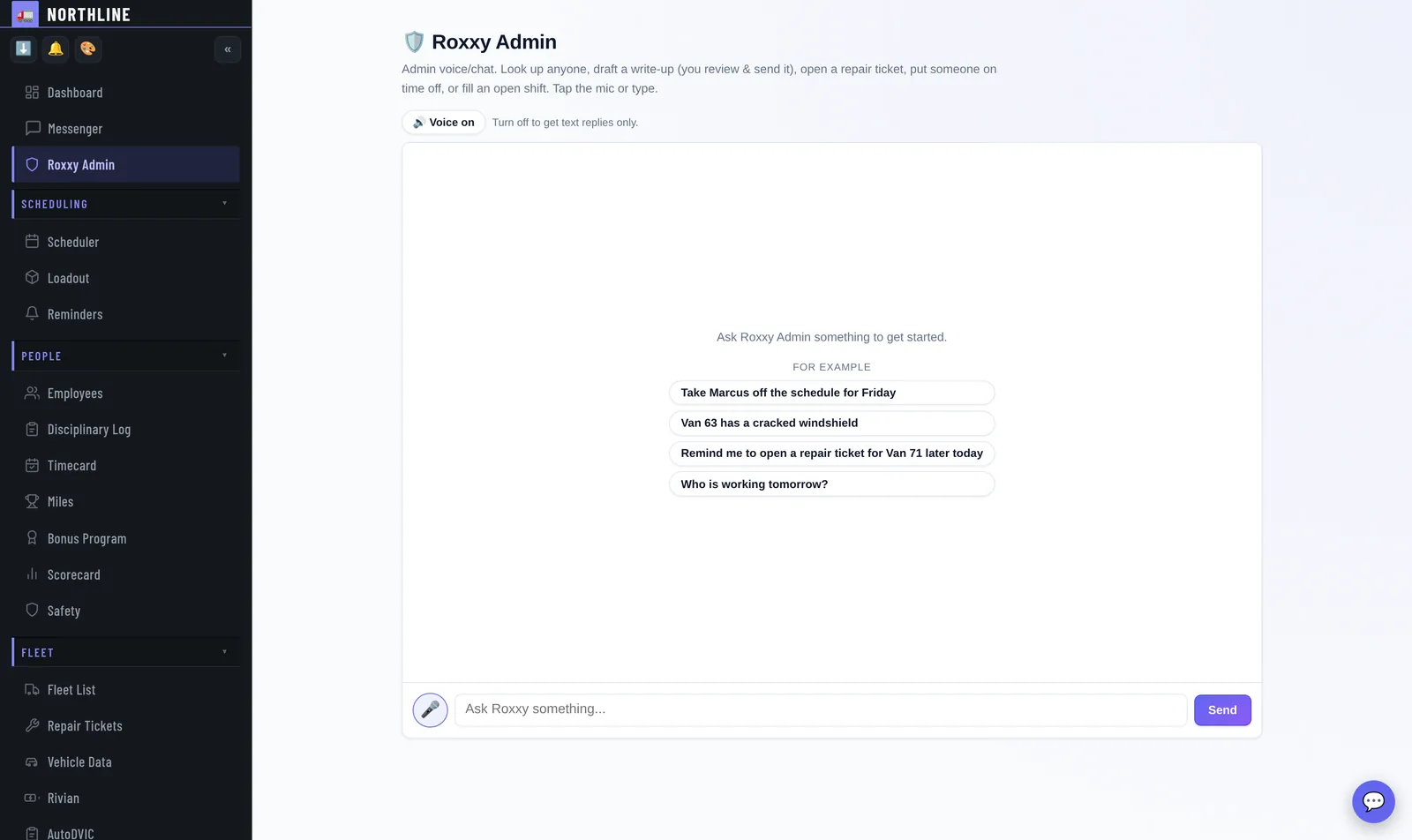
Roxxy Admin takes the sentence you would have said to a dispatcher. Take Marcus off Friday. Van 63 has a cracked windshield. Who is working tomorrow. It drafts the write-up and you send it - nothing it writes leaves without you.
Speak it or type it, including the mornings you are not at a desk. Stood at the dock at five, ask who is working Saturday and fill the open shift without walking back to the office for it.
The assistant Knowledge Base
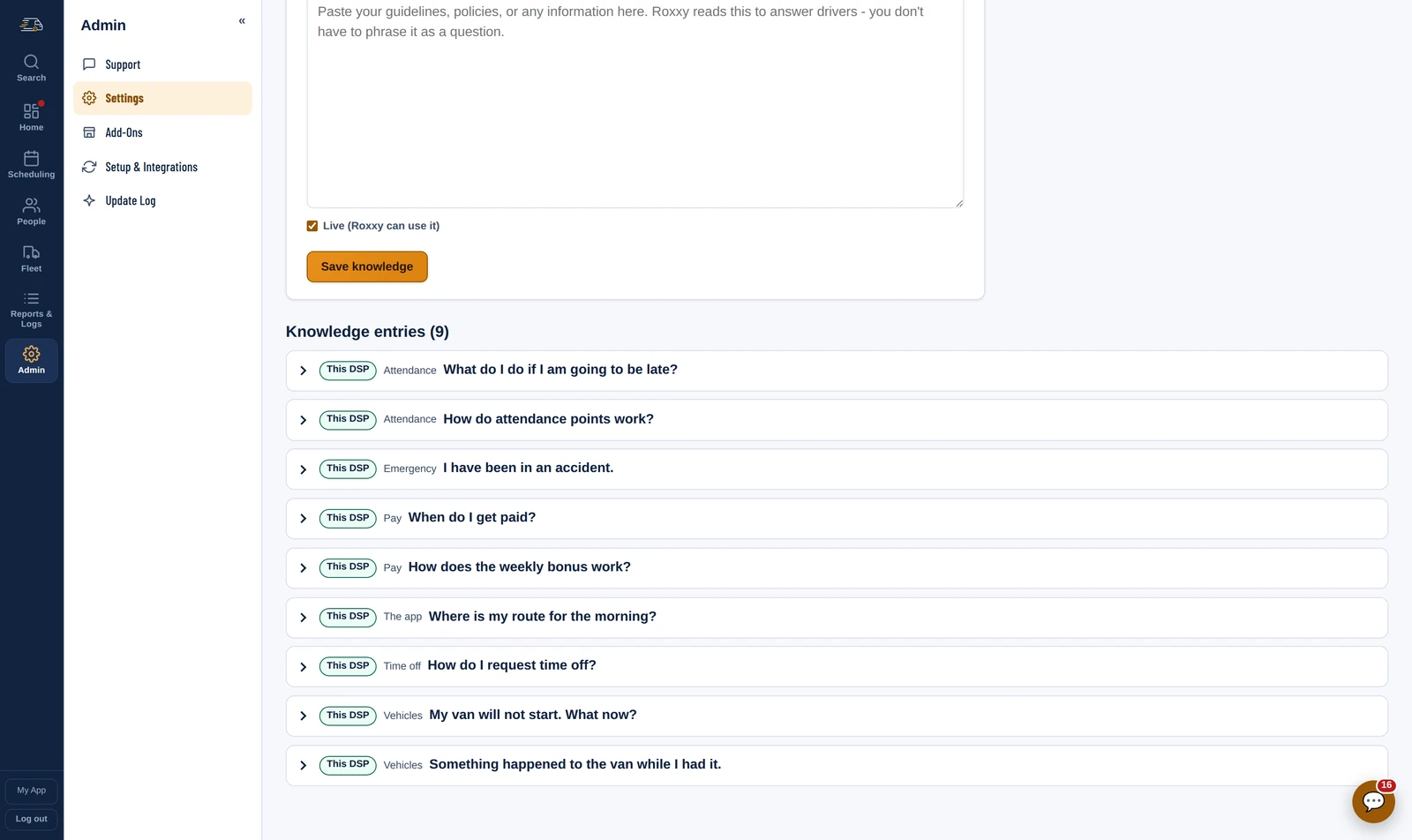
Paste how you do things - pay dates, the points policy, what to do after an accident - and Roxxy answers out of it. Not a handbook nobody opens: the driver asks at 05:00 and gets your answer, in your words.
Drivers get their own Roxxy too: my schedule, my points, my next day off, pick up an open shift. Hands free, from the van.
The paper trail Safety Coaching · Auto-Coaching
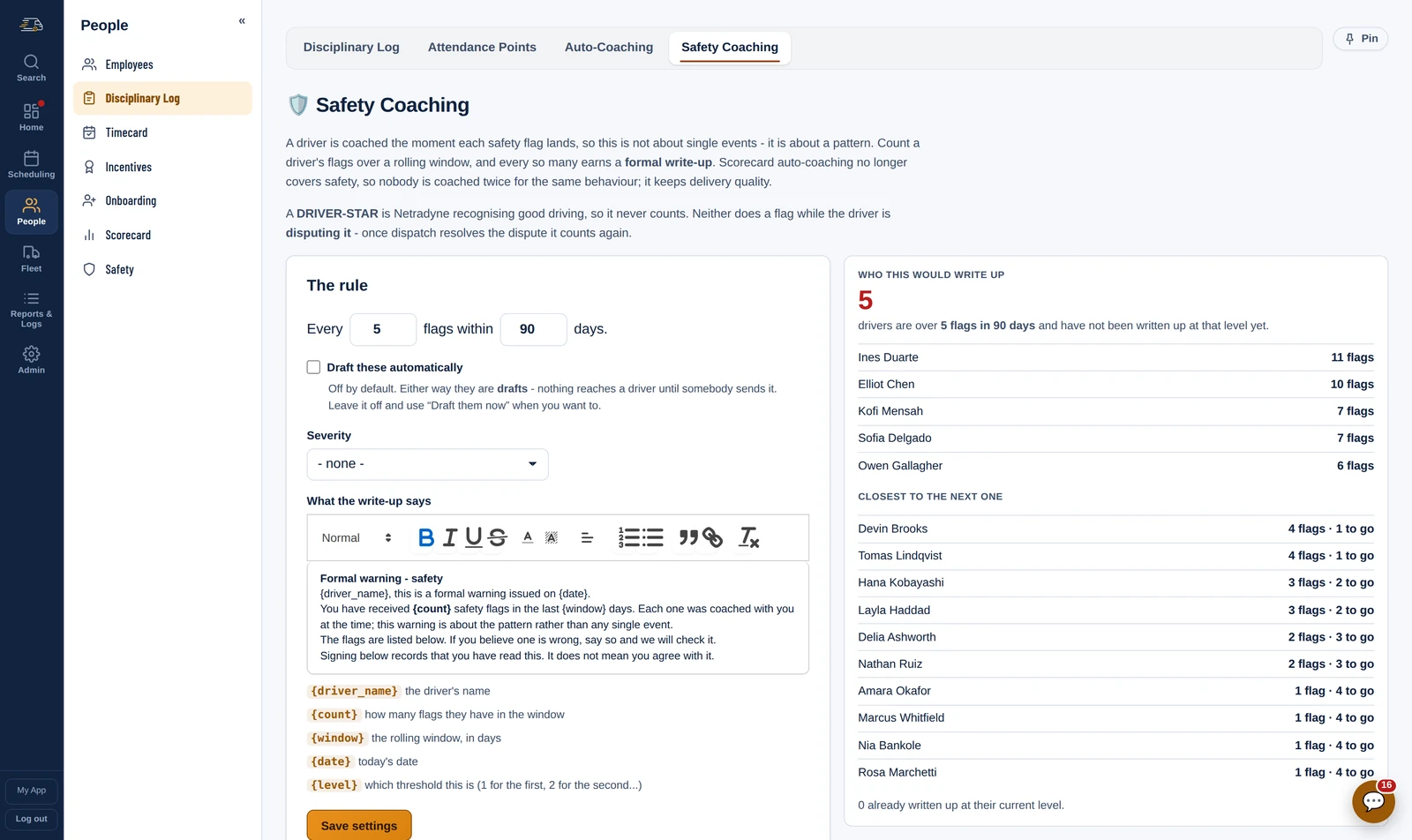
You set the rule once - so many flags in so many days - and a formal write-up is drafted against the pattern, with the flags listed and the wording you chose. Nothing reaches a driver until somebody sends it.
Delivery quality has its own engine beside it, and it ships switched off: a week at Poor or Fair on the four delivery metrics drafts that driver a coaching, in your wording, for you to review.
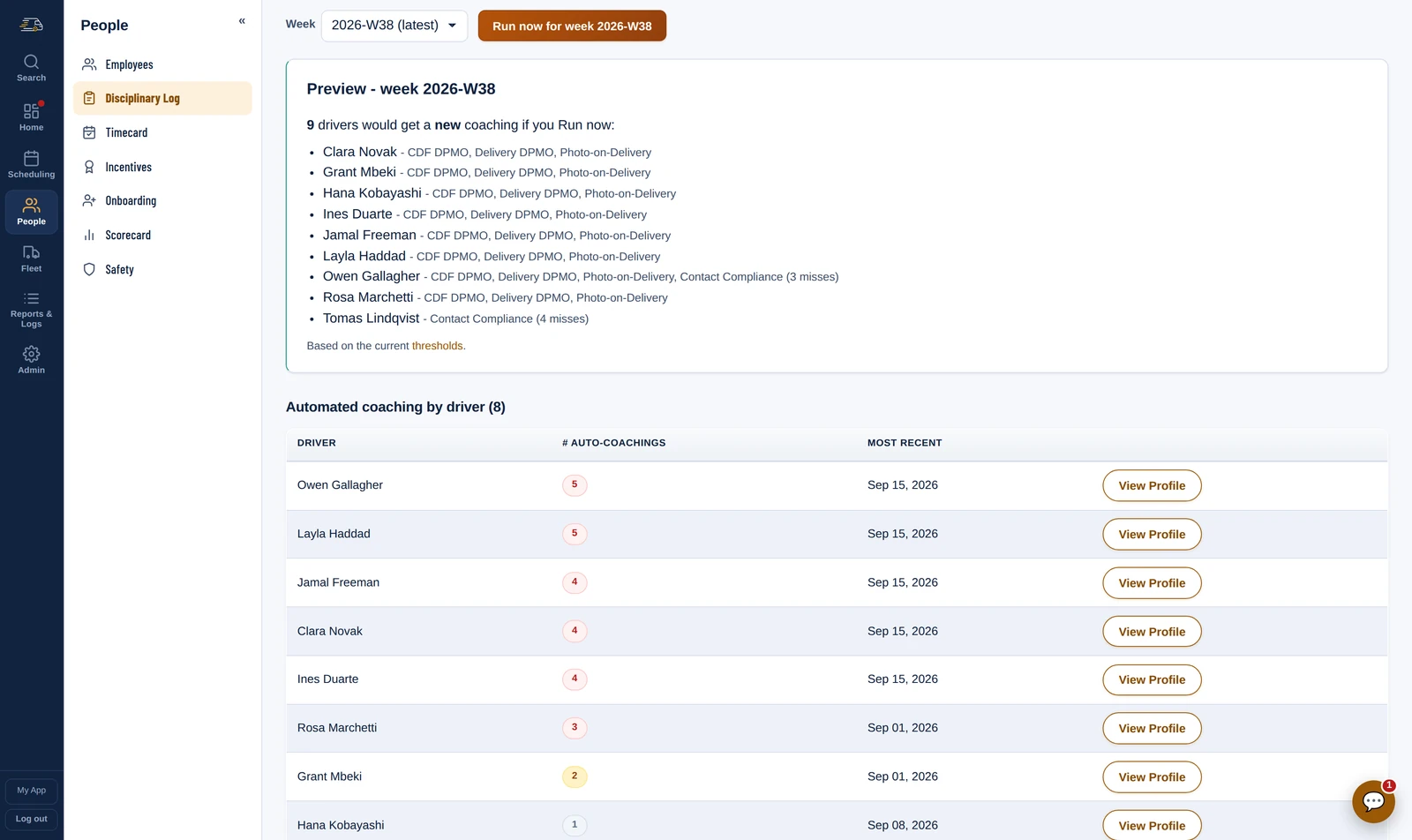
Coaching off the scorecard Auto-Coaching
Pick, per delivery metric, the tier that earns a coaching, and add a number of your own where the tier is too blunt. Each week's run lists everybody under the line before anything is created.
The follow-up table counts how many each driver has had, and past the threshold you set a formal write-up is drafted too. Drafts only - nothing reaches a driver until somebody sends it.
Setup
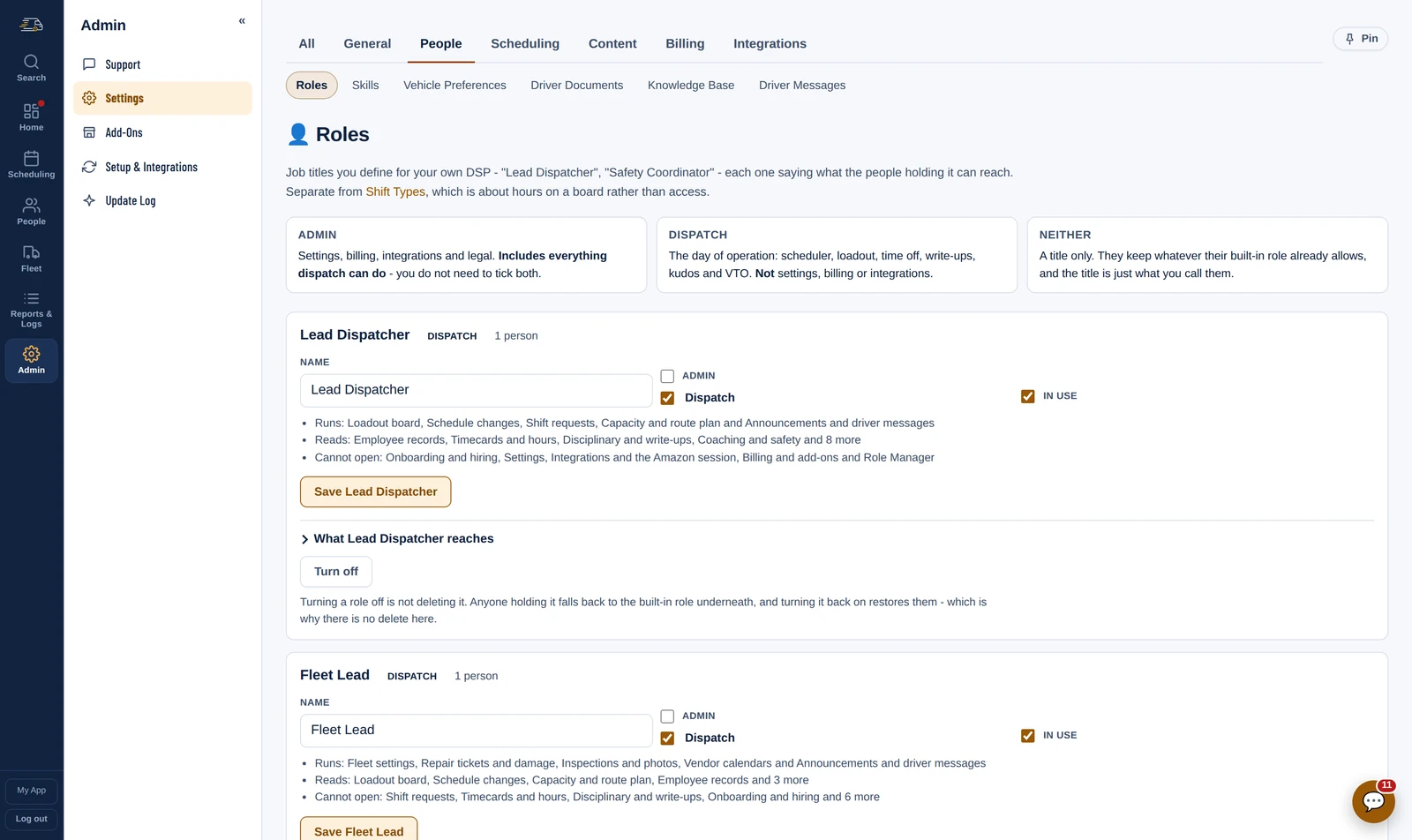
Roles Role Manager
Name the jobs your station actually has - Lead Dispatcher, Fleet Lead, Safety Manager, Yard Lead - and put people on them from their profile. Each role says in plain words what it runs, what it can only read and what it cannot open at all.
A role adds to what somebody already is rather than replacing it, so giving a driver a title never takes them off the schedule.
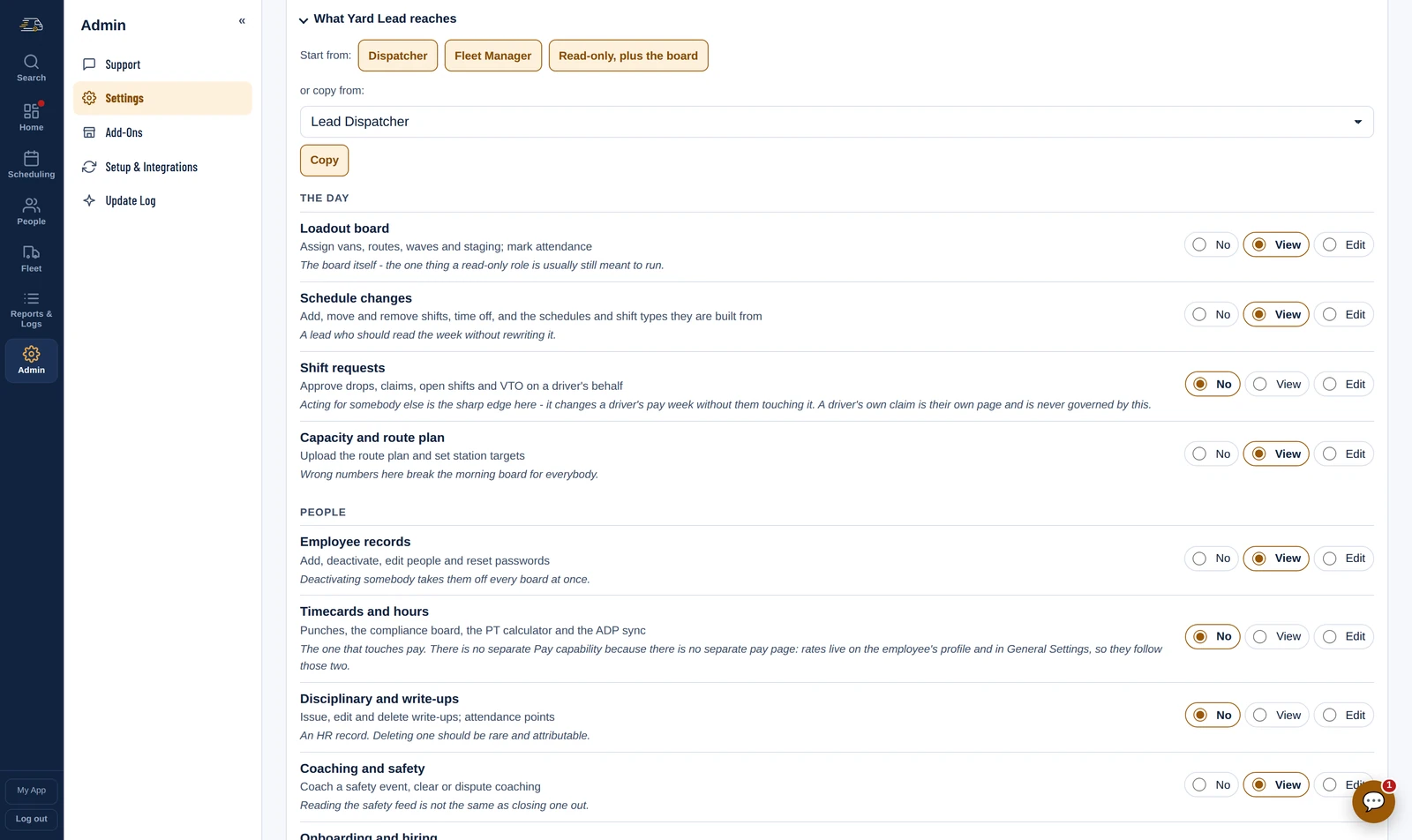
What a role reaches Role Manager
Every responsibility in the station - the Loadout board, schedule changes, shift requests, timecards, write-ups, the fleet, the scorecard, settings, billing - is No, View or Edit. So “reads everything, runs only the Loadout board” is one preset and one click, not two dozen decisions.
Nobody can hand out more than they hold, so whoever you give the Role Manager to cannot quietly write themselves a billing grant.
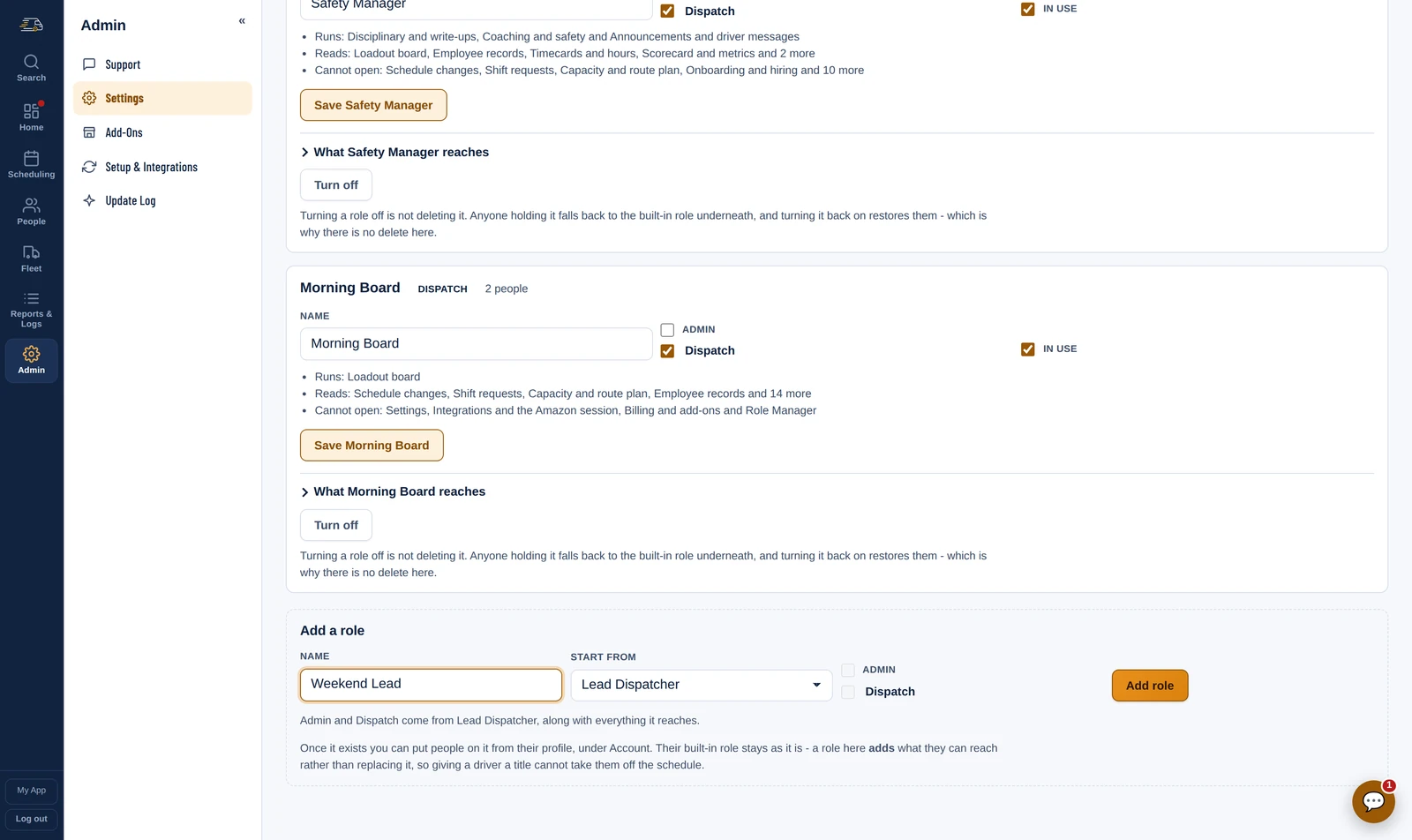
New roles Role Manager
Copy an existing role and the new one starts with everything it reaches, Admin and Dispatch included - then narrow it. The Yard Lead here began as a copy of the Fleet Lead, with the repair money and the vendor accounts taken away.
Turning a role off does not delete it. Everyone on it falls back to their built-in role, and turning it back on restores them.
Setup
Every part of it is a switch. Start with the board and the schedule, add the drivers' app when you are ready for it, leave the AI off entirely if you want. Nothing here needs the rest of it to work.
Coaching drafts, attendance points, the assistants, the incentives - each one off until you want it.
Anything metered by use can be turned off entirely, and the running total sits in the app with the rate beside it.
The thresholds, the band names, the write-up text and the shift types are all yours to set.
We have run the station, made the payroll, sat in the coaching conversation and eaten the chargeback. We have fought the Amazon disputes and lived through the scorecard changes, the system changes, the new rules, the new vehicles and the new SOPs - and worked out of more than one station. Every screen started as something that went wrong on a Tuesday.
A layout changes and we adapt the importer, usually the same week. You are not filing a ticket behind a thousand other customers, or waiting on a quarterly release.
Every DSP tool is designed by management. We sat down with our own drivers and built what would make their day easier too - which is why they open it.
And your operation is not the same as anybody else's. If you handle something differently, tell us - custom pages, custom forms and your own wording are part of the product, not a professional services quote.
And without us ever holding a password. There is no Amazon password field in this product. The most we are ever trusted with is a session you can end yourself, from either side, whenever you want.
Encrypted at rest, and scoped to Amazon and nothing else.
Runs from your own browser, signed in as you, and nobody else's.
Ended from either side, by you, at any time.
You cannot judge this in a meeting. It earns its keep once a real week of routes, punches and write-ups is in it - and that takes a month to happen. So take the month.
Start your trialWeek one
We set up your stations, drivers and shift patterns with you.
Week two
Drivers get the app. The board runs a real day.
End of month
You have a month of your own numbers to decide on.